 Mad
Your inventory stays on your phone.
Not on our servers. That is a genuinely good thing and it has a genuinely real catch, and both halves are on this page.
The promise
Nobody here has a copy of your stock.
Items, photos, sale records and generated listings are stored in your own phone’s storage. They are never written to MadHaul’s servers or database. That isn’t a policy we could quietly change next year — there is no pipe for that data to travel down.
It means nobody at MadHaul can look at what you’re holding, what you paid for it, or what you made last month. Not because we promise not to, but because we don’t have it.
Exactly two things leave your phone
- The one item you’re analysing. When you scan, price check or generate a listing, that item’s photo or details go to Google Gemini for that single request. Nothing else goes with it, and the request content isn’t stored in our logs — we record how many tokens it used, not what it said.
- Your backup file, if you set one up, and only to your own Google Drive.
That’s the whole list. Signing in is separate: your email address, a one-way hash of your password, and your credit balance sit with our sign-in provider, and none of your inventory goes anywhere near them.
The catch
If you lose the phone, we can’t get it back for you.
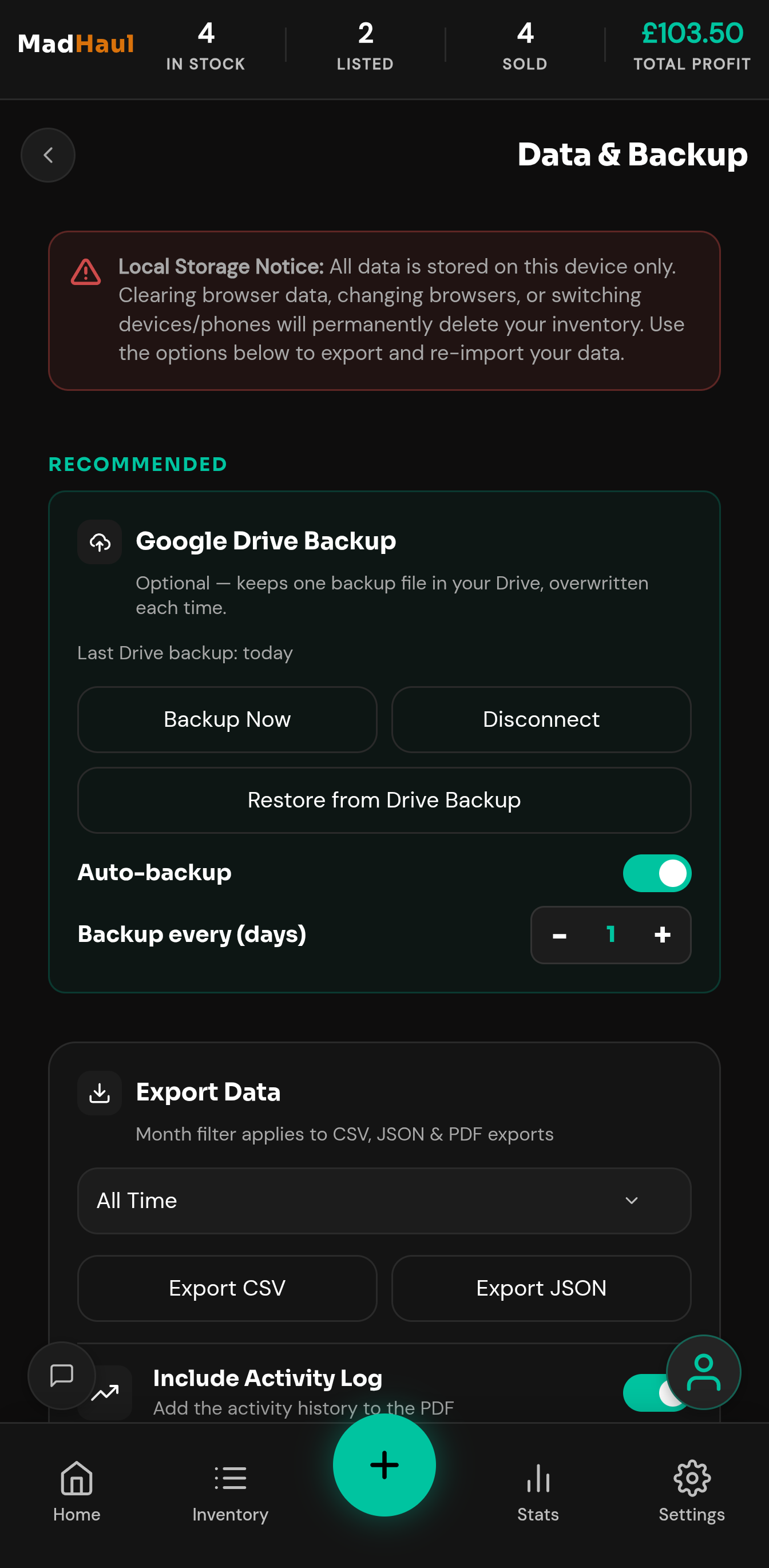
Plainly, because you should hear it from us and not from experience. Clear your browser data, switch browsers, or move to a new phone, and your inventory is gone — unless you have a backup. There is no copy on our side to restore from, and no support ticket that can undo it. This is the exact trade you get in return for us not holding your data.
A few specific things that will do it: clearing site data or “browsing data” in your browser settings; using the app in private or incognito mode; a browser set to clear site data when it closes; uninstalling or switching browsers; and getting a new phone without restoring first.
None of these are exotic. The first one in particular is something people do to free up space without thinking about it.
So the fix is boring and it takes two minutes, and it is the single most useful thing you can do on your first day.
The fix
Set up a backup on day one.
Two options, and they work happily alongside each other. Both live at Settings → Data & Backup.
Google Drive
Connect a Google account and MadHaul keeps one backup file in your own Drive — everything, photos included. It reuses the same file each time rather than piling up copies, and it can be set to back up on an interval.
A file you download
Export a full JSON backup whenever you like and keep it wherever you keep things. Also exports as CSV, and there’s a PDF summary if you want something readable rather than restorable.
What the Drive permission actually allows
MadHaul asks for the narrowest Drive permission Google offers: access limited to files the app itself creates. It can see and edit the one backup file it made, and that is the entire extent of it. It cannot browse your Drive, read your other files, or touch anything that was already in there. The app explains this before the Google permission screen appears, not after.
It won’t overwrite a good backup with a worse one
If a backup would contain fewer photos than the last successful one — usually a sign something has gone wrong on the device rather than that you deleted them — an interval backup stops rather than proceeding, and a backup you started yourself asks you first. A dropped connection mid-upload picks up from where it stopped rather than starting the whole file again.
Nudges, because good intentions fade
After a set number of new items since your last backup, the app prompts you, and keeps prompting at each further multiple. There’s a separate weekly reminder you can snooze for a few days. Both are adjustable, and the item-count nudge can be switched off entirely if you’d rather manage it yourself.
On iPhone, interval backups stay dormant. Safari blocks the background re-authentication they depend on, so on iOS a backup happens when you trigger one yourself, open the Data & Backup page, or reconnect — not silently on a timer. If you’re on an iPhone, treat backing up as something you do rather than something that happens. This is a real gap and we’d rather flag it than let you find out the hard way.
Getting a new phone? Install MadHaul, sign in, and restore from your Drive backup — or import the JSON file you exported. Do it before you wipe the old handset, not after.
One more honest thing
Photos can go before the records do.
Photos are stored separately from the rest of your data — up to six an item, compressed when you take them. Browsers are allowed to clear that particular kind of storage when a device is running short of space, and some will, while leaving the item records untouched.
The upshot is that photos can disappear while everything else survives. MadHaul asks your browser to treat its storage as persistent to make this less likely, and warns you if it spots that it has happened, but it cannot stop the browser doing it.
A current backup covers this too, which is the same conclusion as everything else on this page.
On our side
What we do hold, and what we don’t.
We hold
- Your email address
- Your password, as a one-way hash — or your Google sign-in
- A session token, so you stay signed in
- Your credit balance
We don’t
- Your inventory
- Your photos
- Your sales and profit figures
- Your generated listings
- Your buyer notes or listing URLs
And nothing is watching you use it
No analytics. No tracking pixels. No session recording. No advertising SDKs. No crash reporting. No A/B testing tools. No chat widgets. Not on this website and not in the app — this is a list of things that are absent from the code, not a statement of intent.
The privacy policy names every third party involved and exactly what each one receives. The cookies page covers what’s stored in your browser and why.