 Mad
Features
Every part of the app, screen by screen, in five groups. Pick a group and swipe through what’s in it — real screenshots from a real inventory, so the numbers in them are one test account’s, not a promise about yours.
Adding stock
Point the camera. The form does the rest.
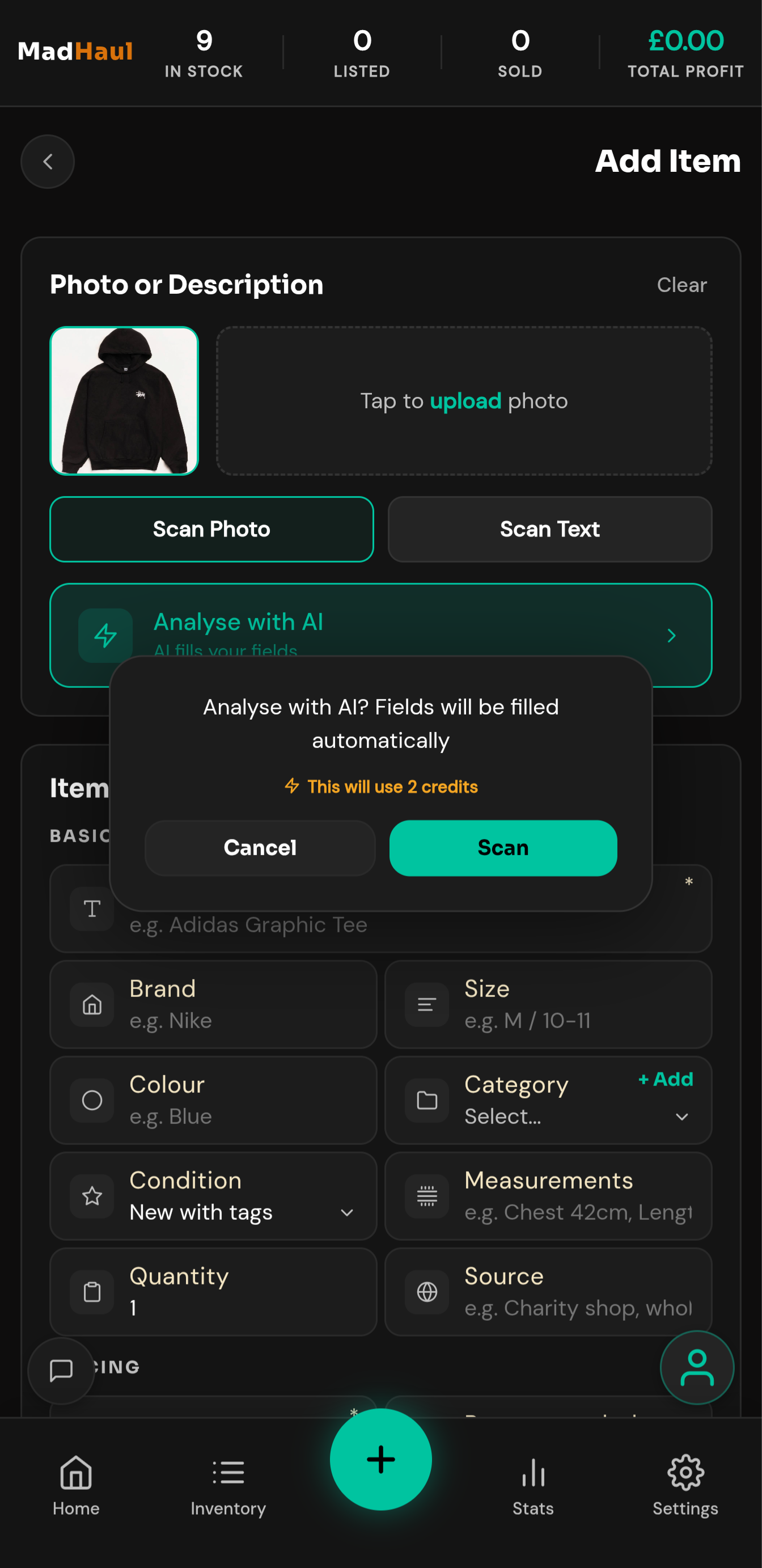
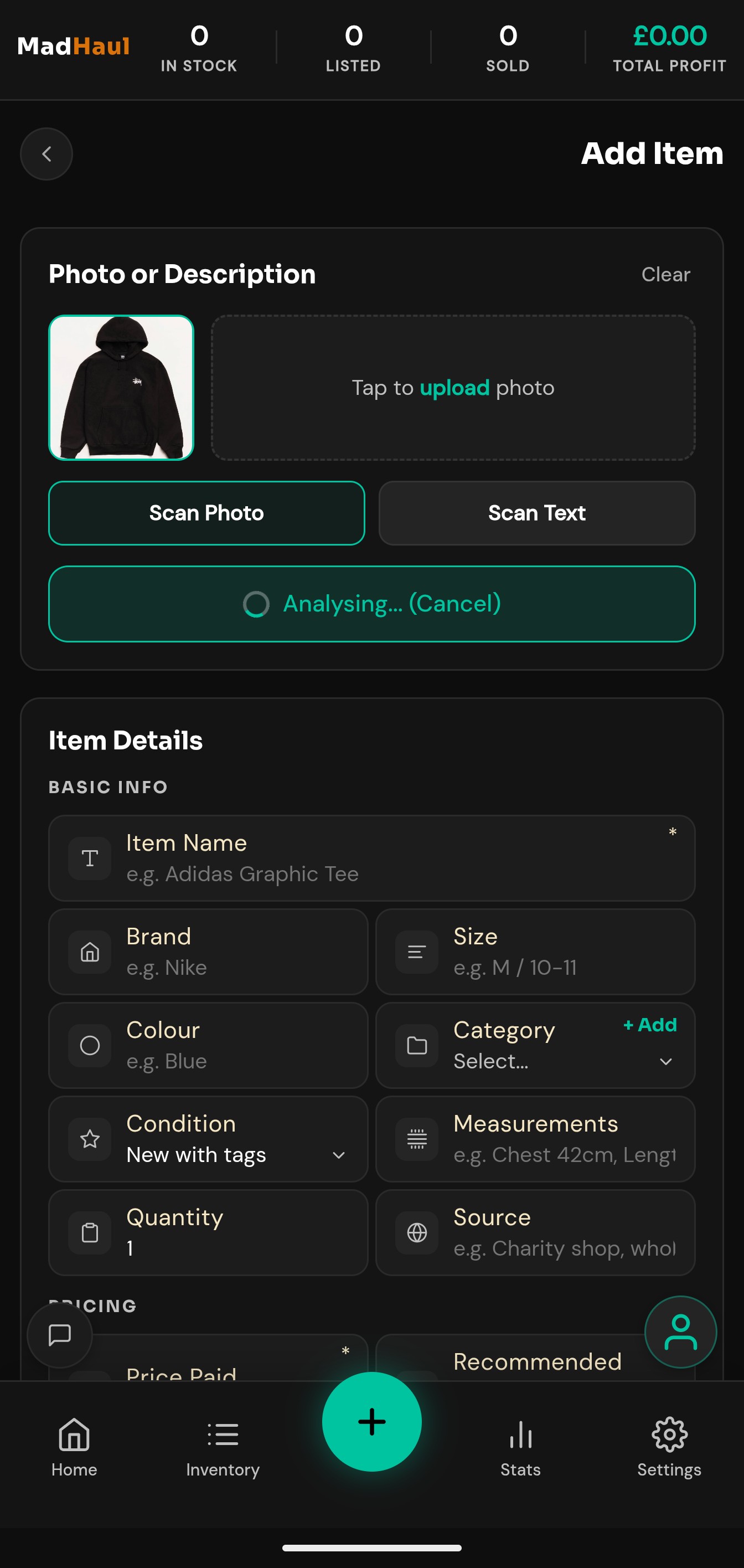
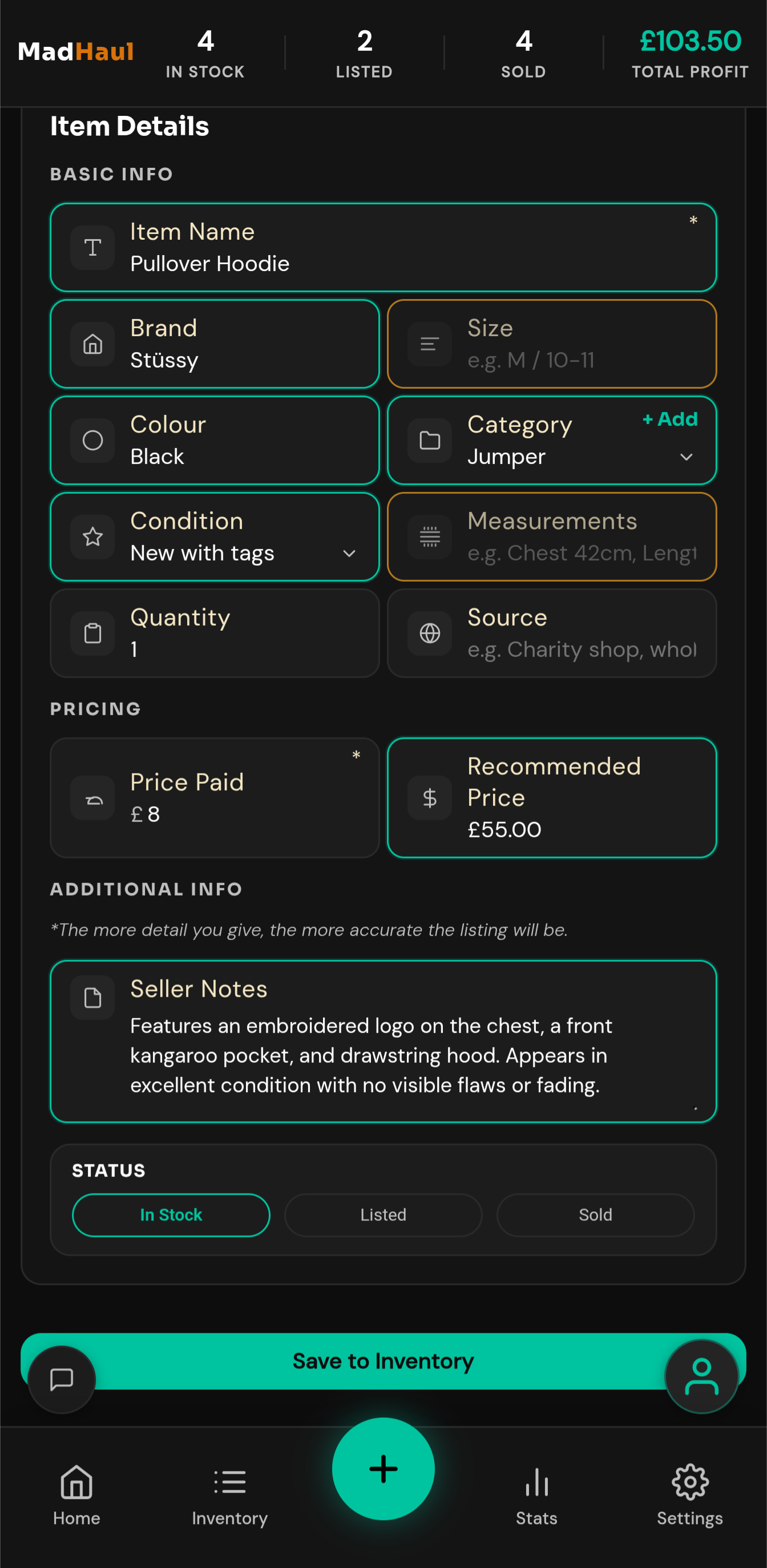
One photo fills it in. Or a line of typed description, if the photo isn’t telling the whole story.
- What it fills — name, brand, category, size, colour, condition, seller notes and measurements.
- Teal means the AI filled it — amber means it couldn’t, so you can see at a glance what still needs you.
- Skip the AI — type the lot yourself if you’d rather.
- Drafts save themselves — put your phone down mid-item and the work is still there.
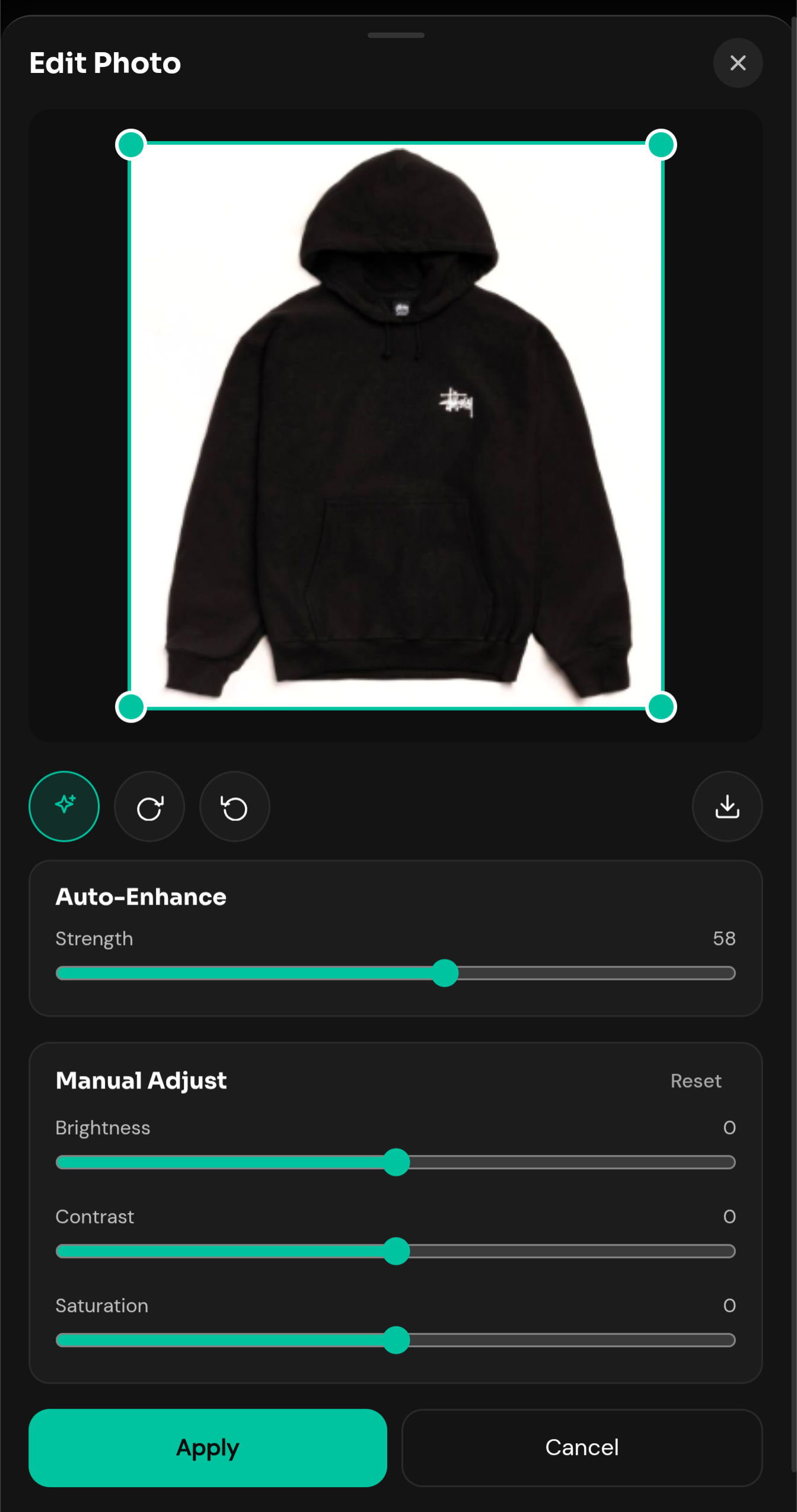
- Photos — up to six an item, with a cropper, rotate and auto-enhance.
Volume
A car boot haul, in one run.
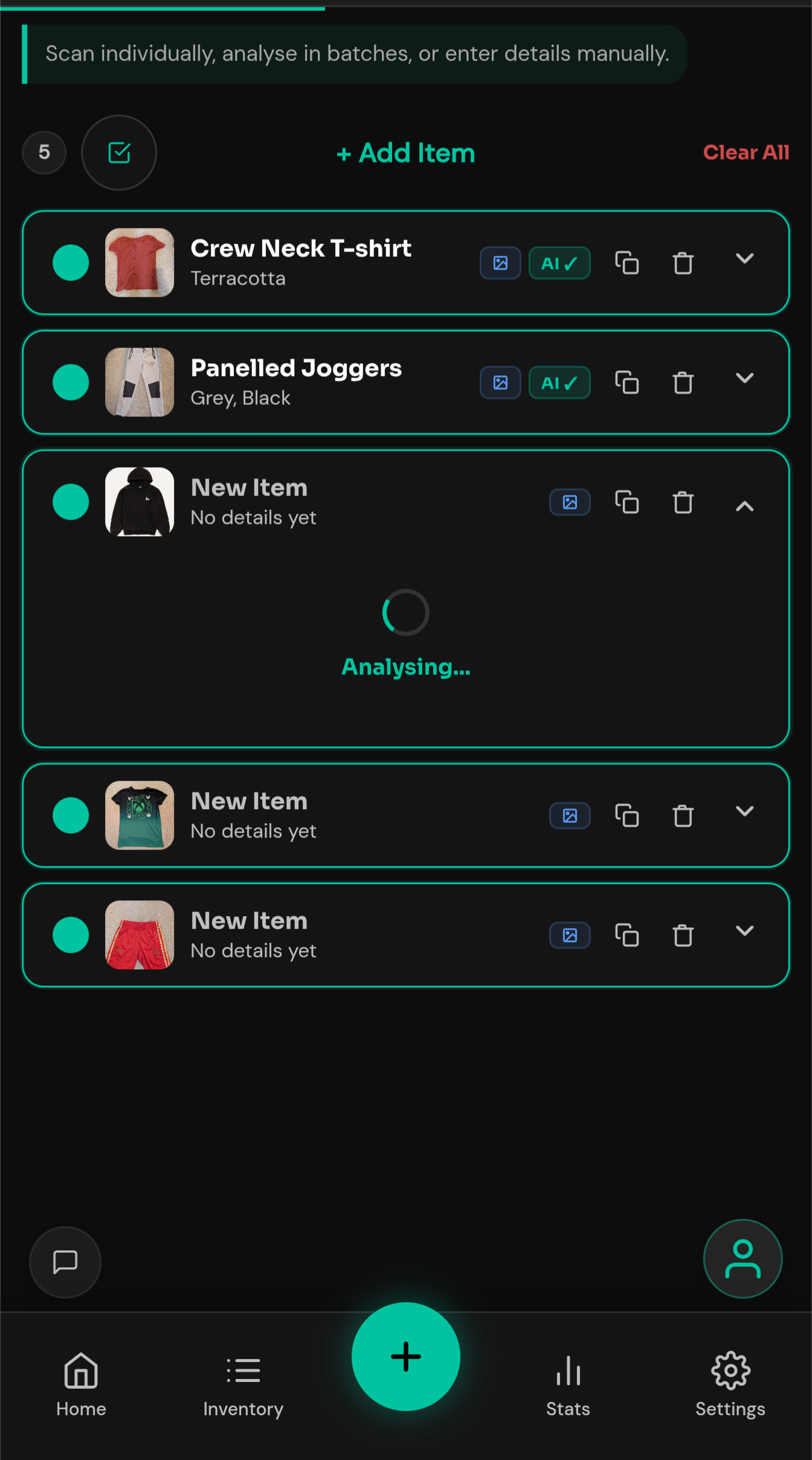
Build a stack of cards, photograph each one, then scan the whole batch in a single run.
- Watch it work — “item 3 of 5”, with a Stop button if you change your mind.
- Autosave as it goes — every card saves itself on the way through.
- If a few fail — the rest stay on screen, so you retry just those rather than the whole pile.
In the shop
A steer on the price, before you pay for it.
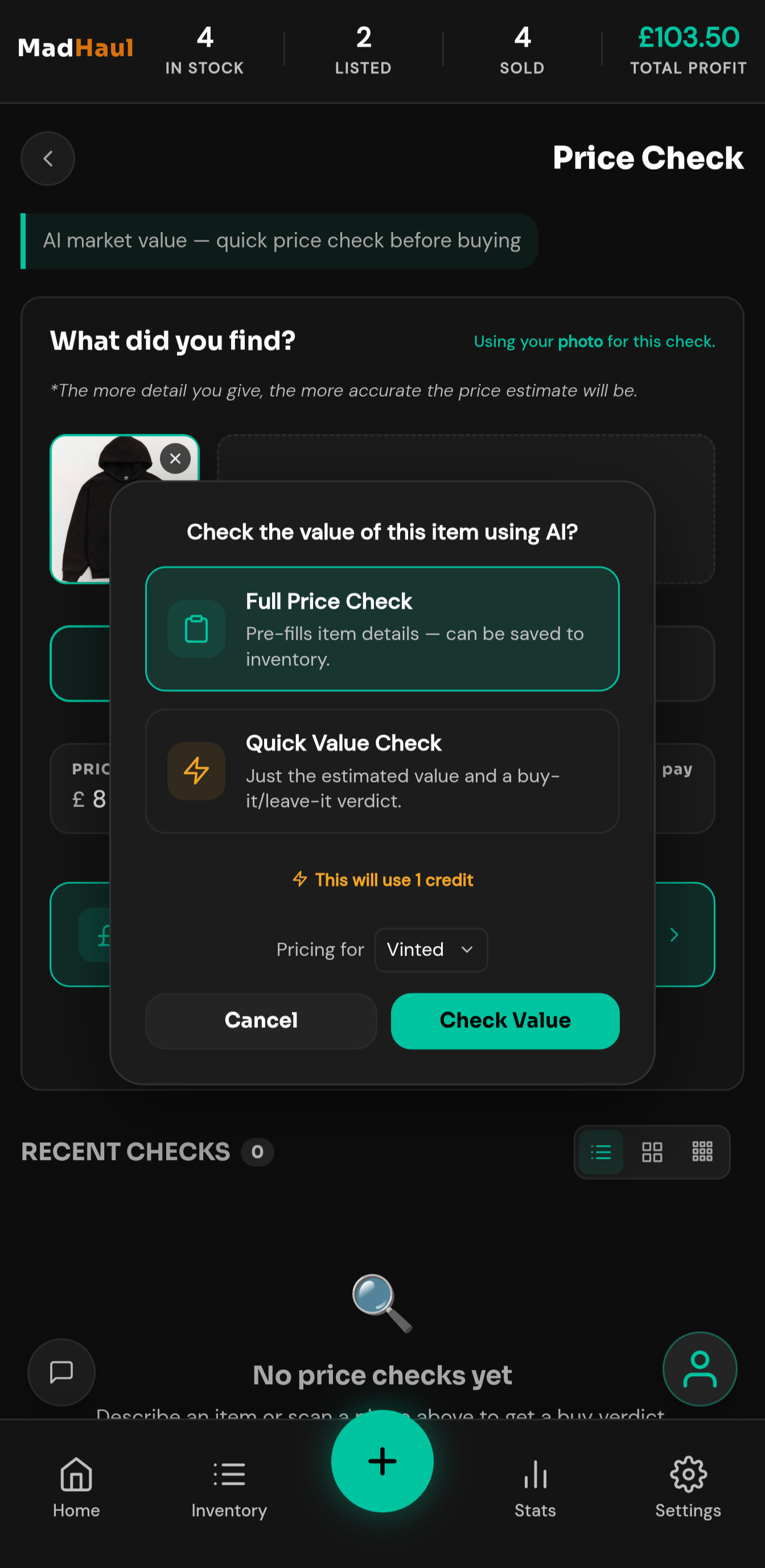
Photograph it on the rail and enter what it costs, and you know whether it’s worth having before you reach the till.
- What comes back — an estimated UK resale value on the platform you’re selling on, your profit, and a grade on the deal.
- A full check — also identifies name, brand, category, colour and condition, and saves it straight into inventory rather than you retyping it at home.
- Your platform — Vinted, eBay, Facebook, Depop, Gumtree or Shpock, set once in Settings and changed per check from the dialog that shows the cost.
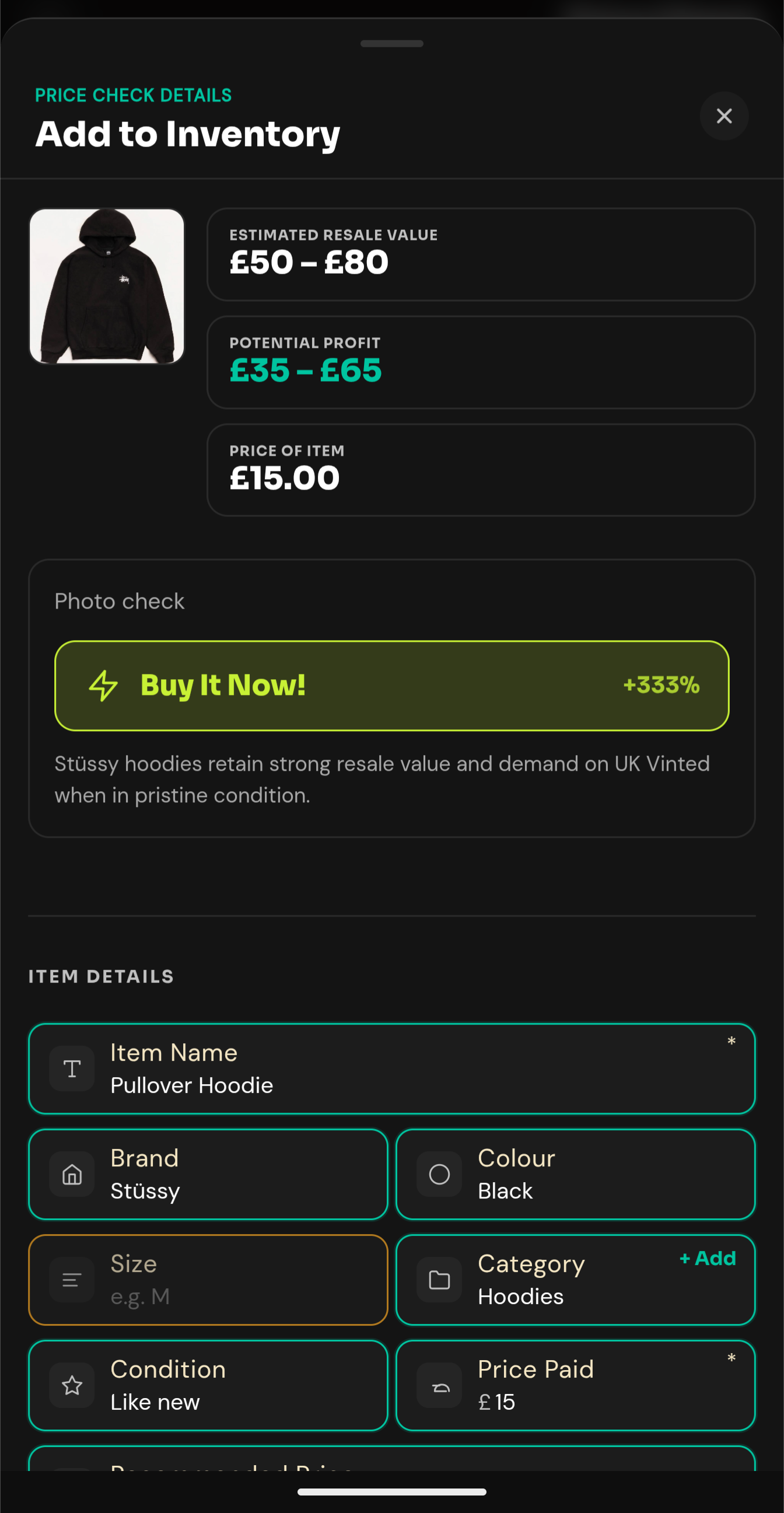
Think of it as a second opinion, not gospel. The AI’s guessing from what it knows, not from sold listings or live market data — same as you would, just faster. It can be wrong. Worth a gut-check before you buy, not a replacement for one.
Working the numbers
The other way round: what you need to sell it for.
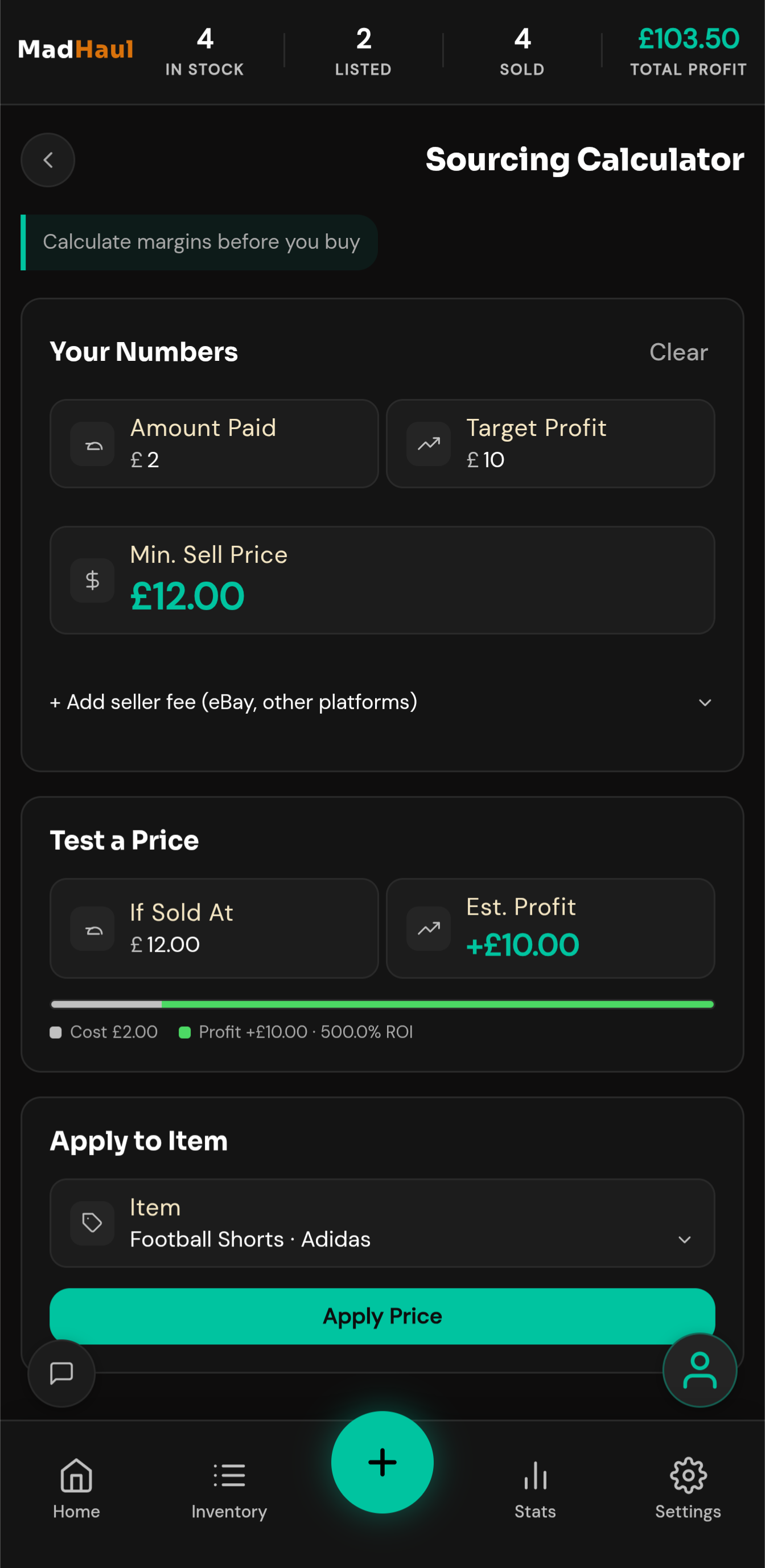
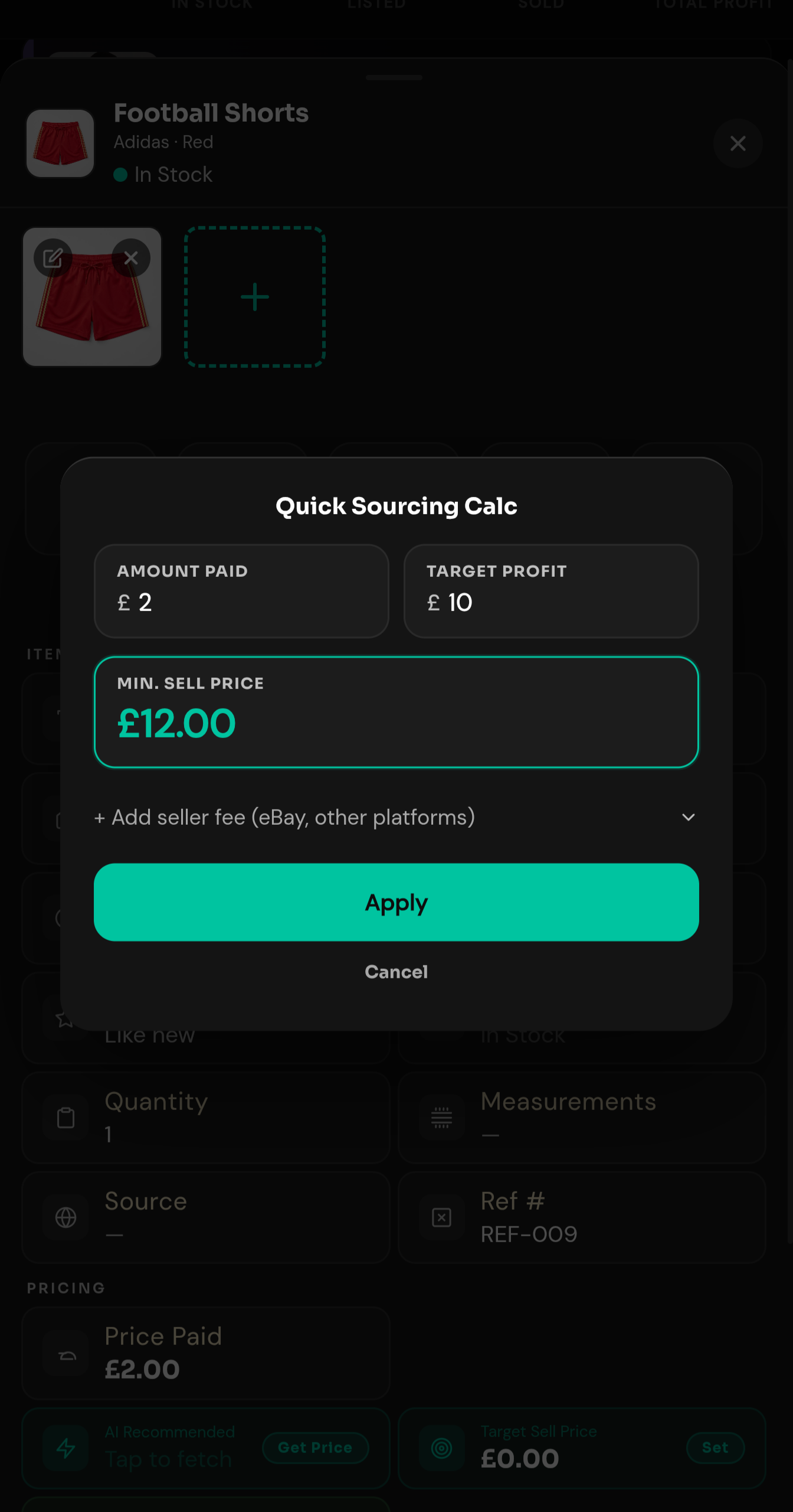
Put in what you paid and the profit you want. Out comes the minimum you can sell at to get there.
- Seller fees — add one and the number moves with it.
- Test a price — type a different one and see the profit and ROI you’d actually make, with cost, fee and profit broken down in a bar.
- From something you own — point it at an item or a bundle and the cost fills itself in.
- Inside the edit sheets — a smaller version opens there, so you can work a price out without leaving what you were doing.
- Plain arithmetic — no AI, no credits, nothing to confirm.
The listing
The write-up, done in one tap.
Pick an item, tap Generate, and the write-up comes back in blocks with a copy button each — pasted across one at a time.
- What you get — a title under 80 characters, a description, hashtags, a recommended price and a typical range.
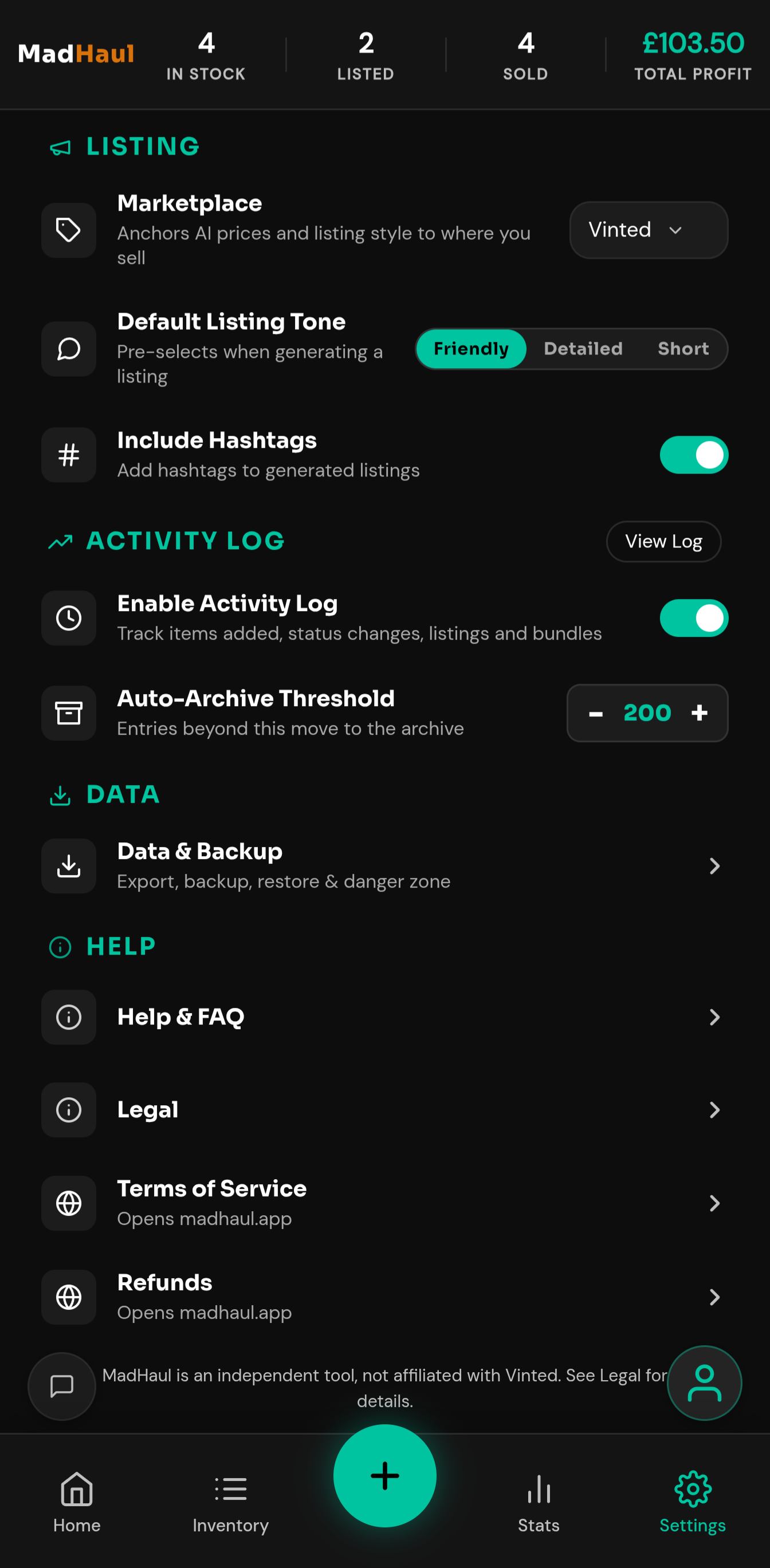
- Tone — Friendly, Detailed or Short, picked once in Settings and matched by every listing after.
- Hashtags — turn them off for good if you’re not keen.
- Platform — the write-up targets whichever of the six you’re selling on, set as a default or switched for a single listing.
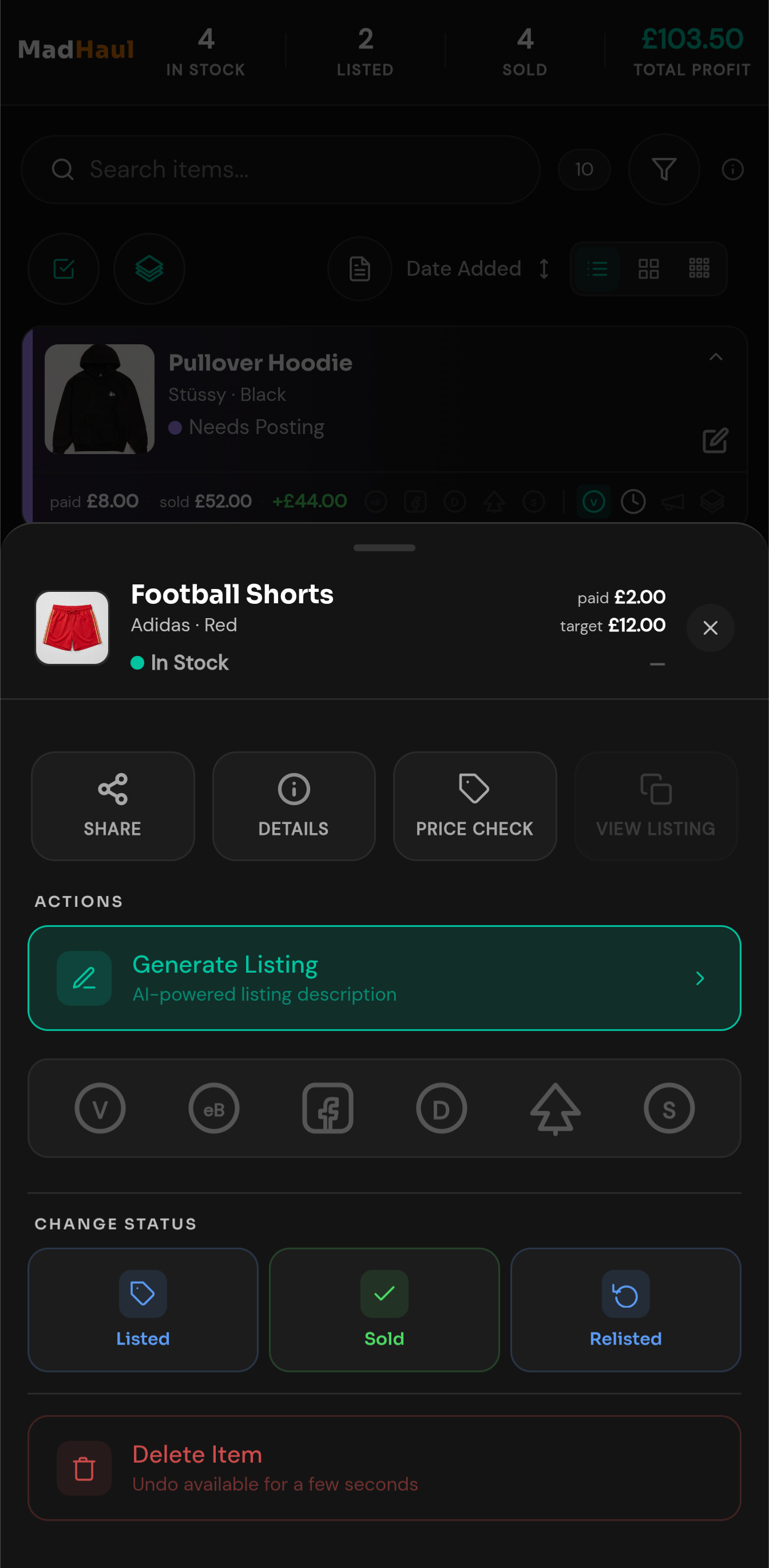
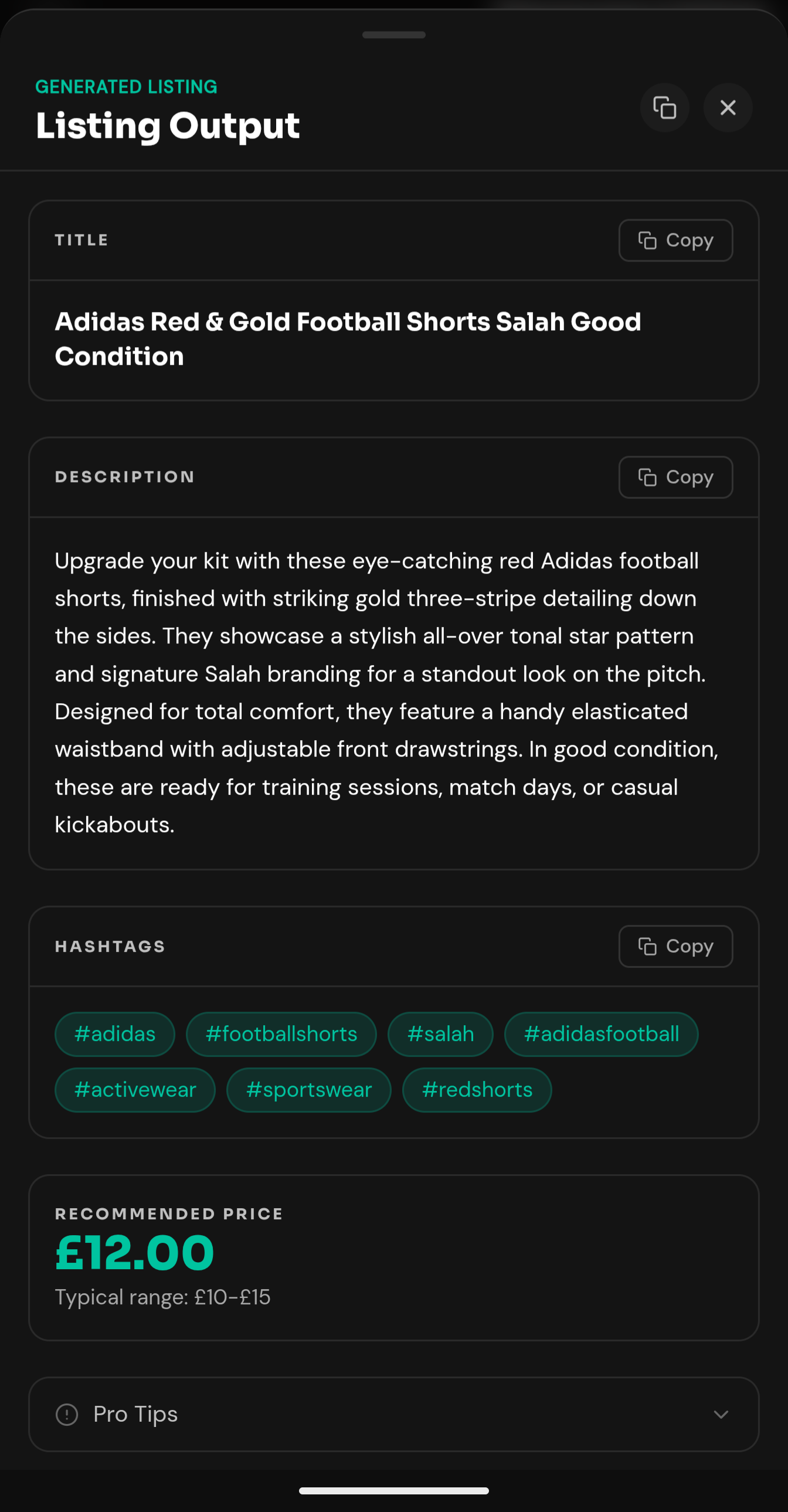
Two things worth knowing. The write-up comes from the item’s fields, not from the photo itself, so the more you fill in, the better it reads. And MadHaul never posts anything for you, ever. You copy it, you paste it, you’re the one who hits publish.
What’s next
The app has opinions about what to do next.
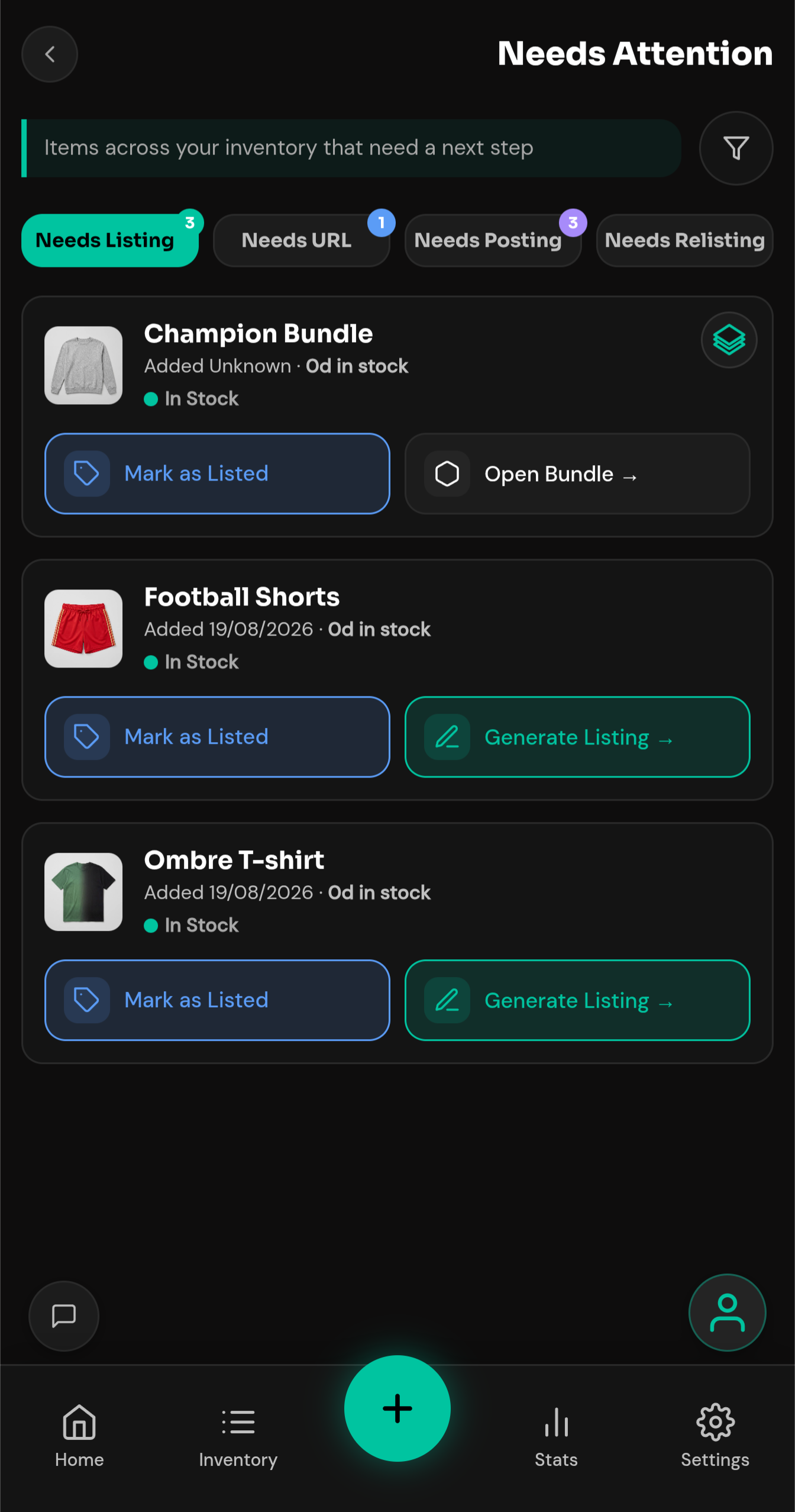
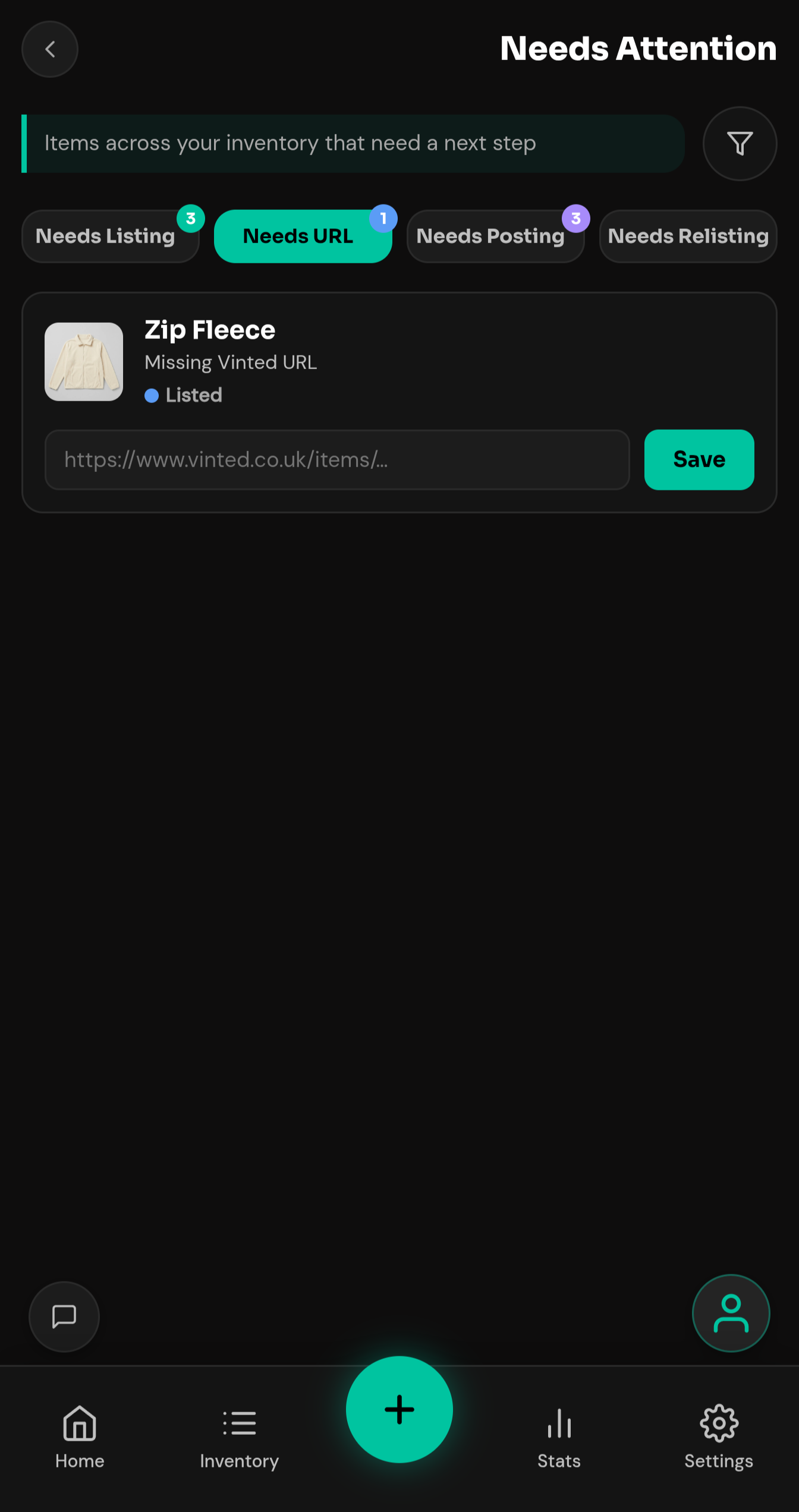
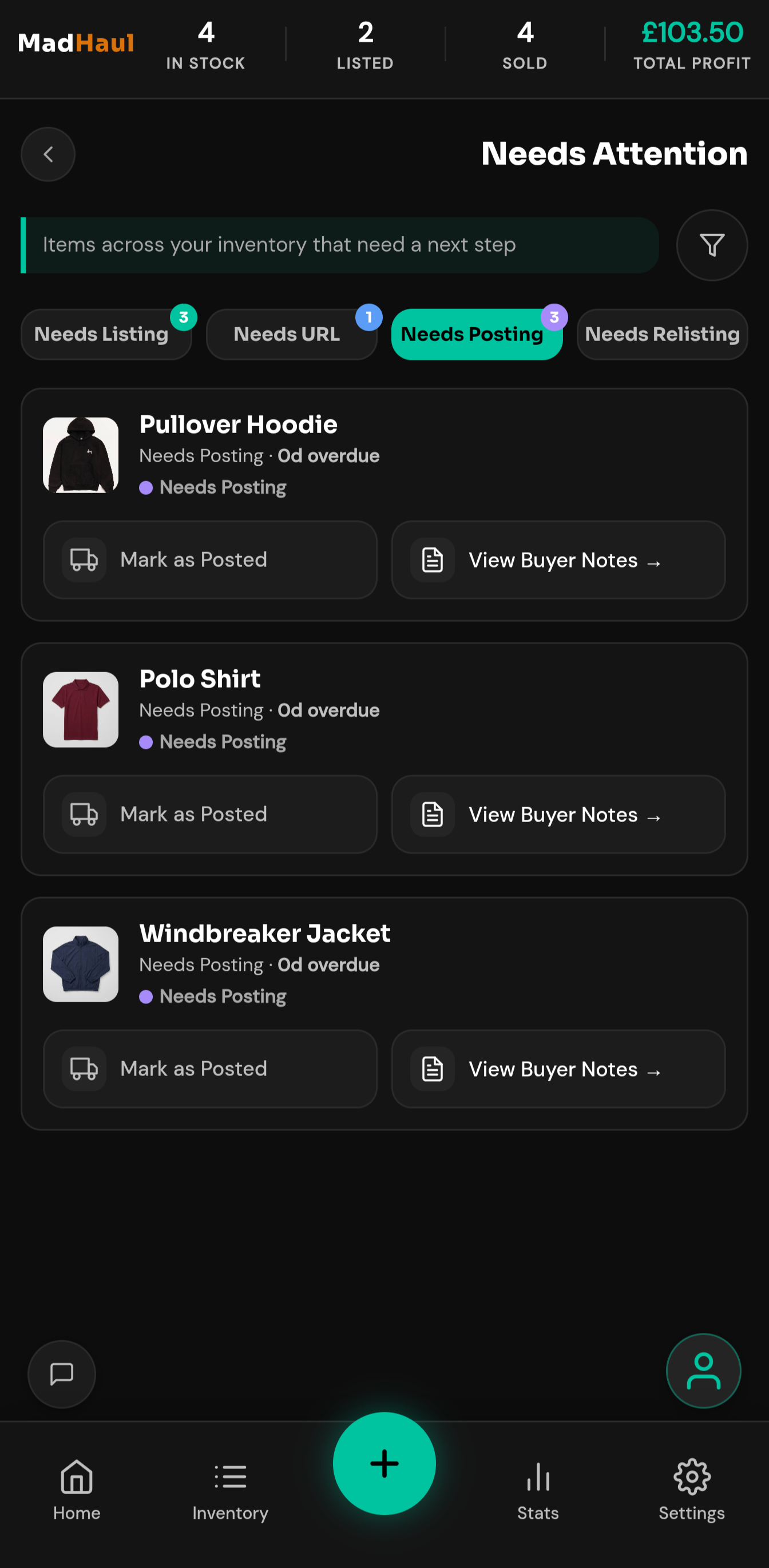
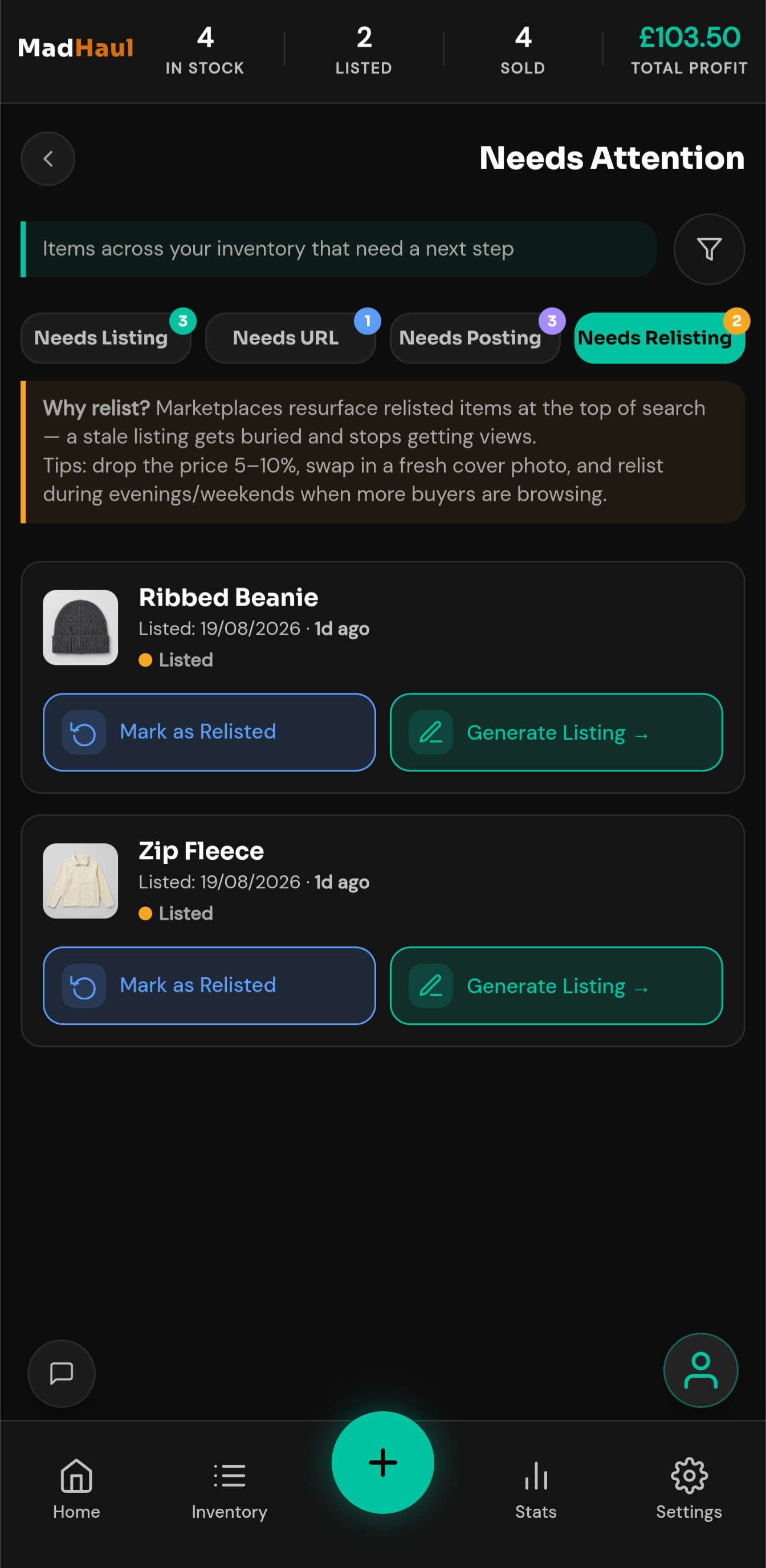
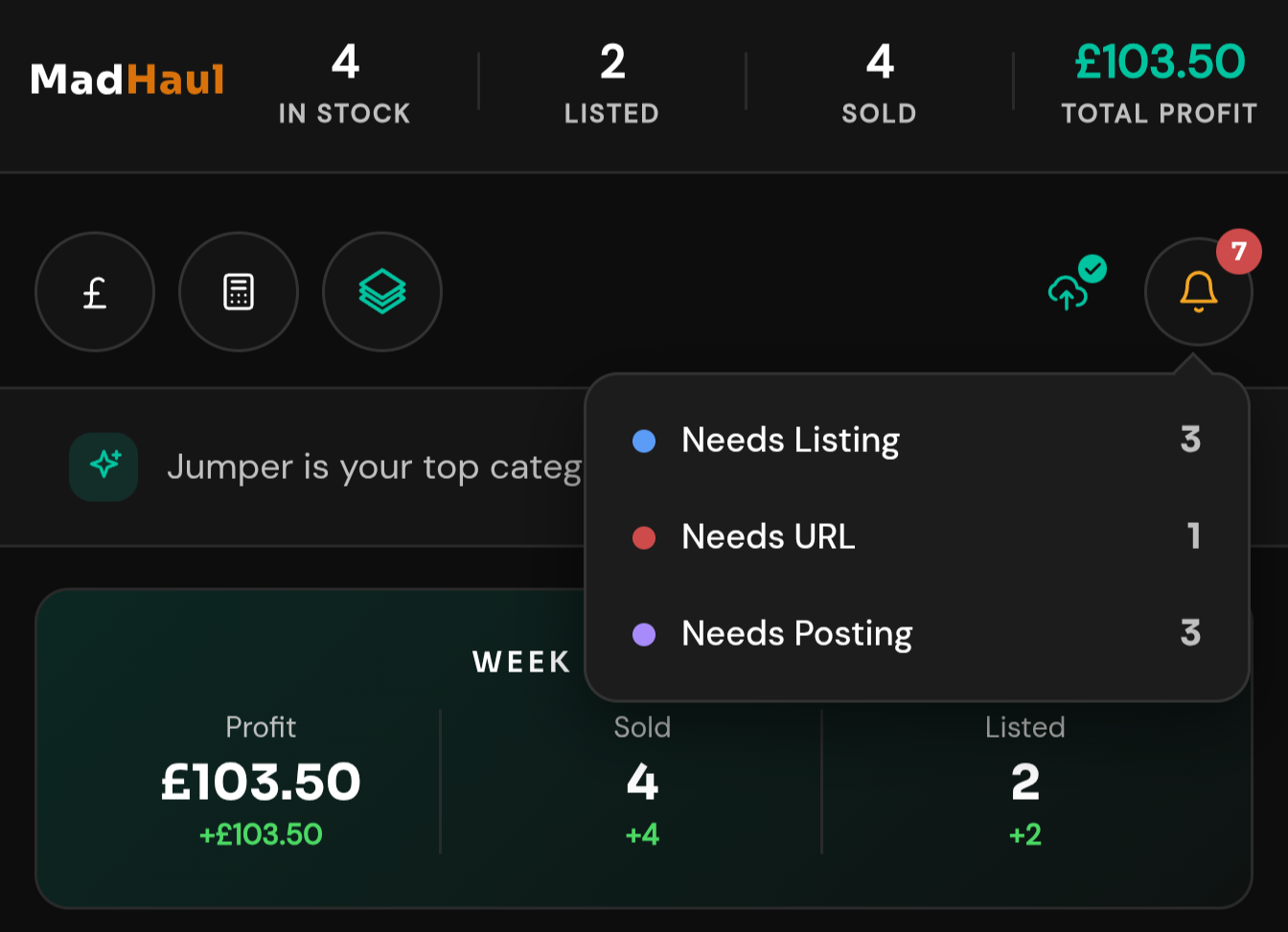
One screen, four queues, each tab carrying a count — so you know the size of the job before you start it.
- Needs listing — not written up yet.
- Needs URL — listed, but the link isn’t saved.
- Needs posting — sold, and waiting to be sent.
- Needs relisting — up long enough to be worth another go, after a number of days you set. Three by default.
- The action is on the row — mark as listed, paste and save the URL, mark as posted, generate the listing, open the buyer notes. No opening the item first.
The inventory
Everything you own, in one list.
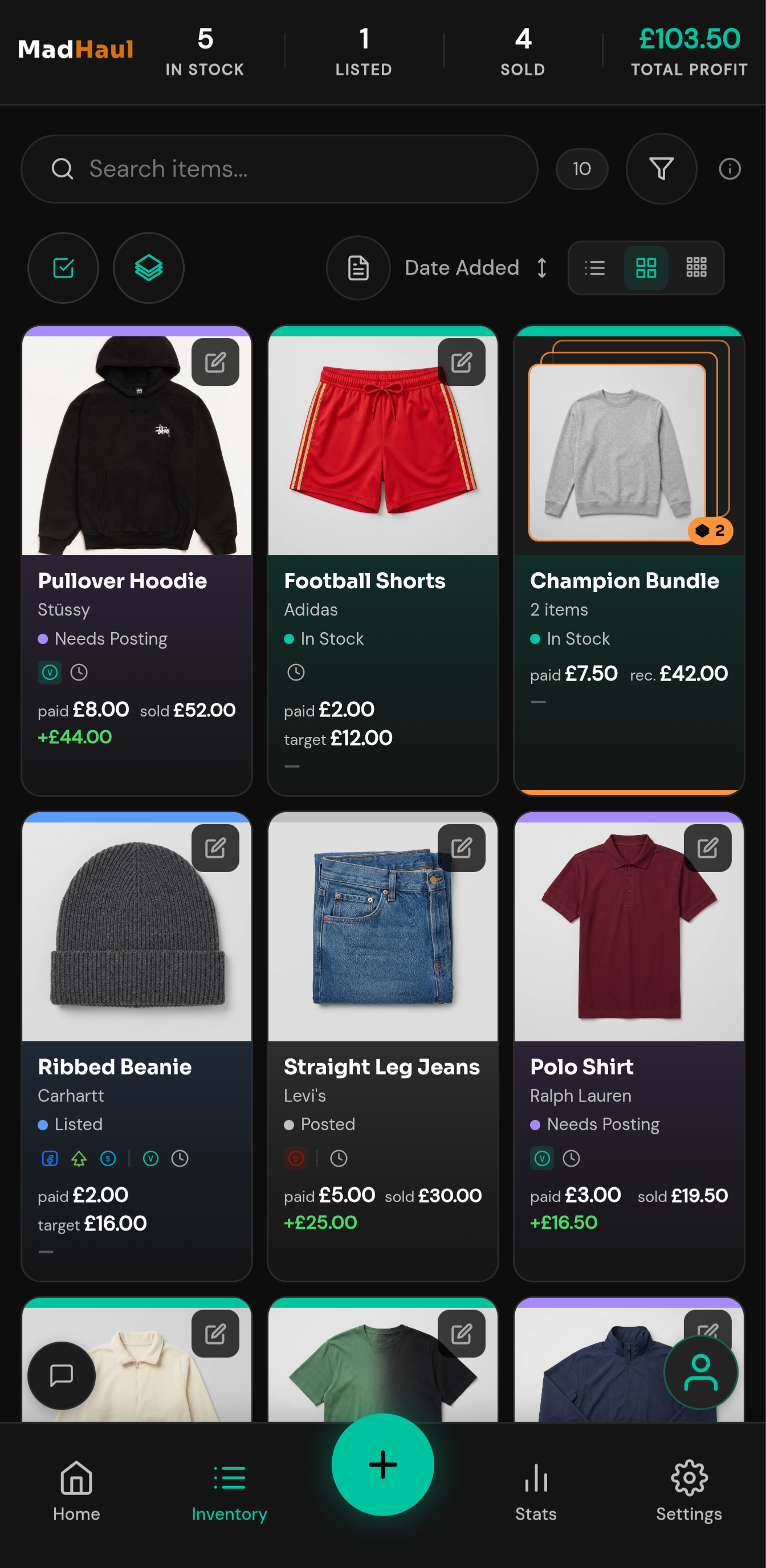
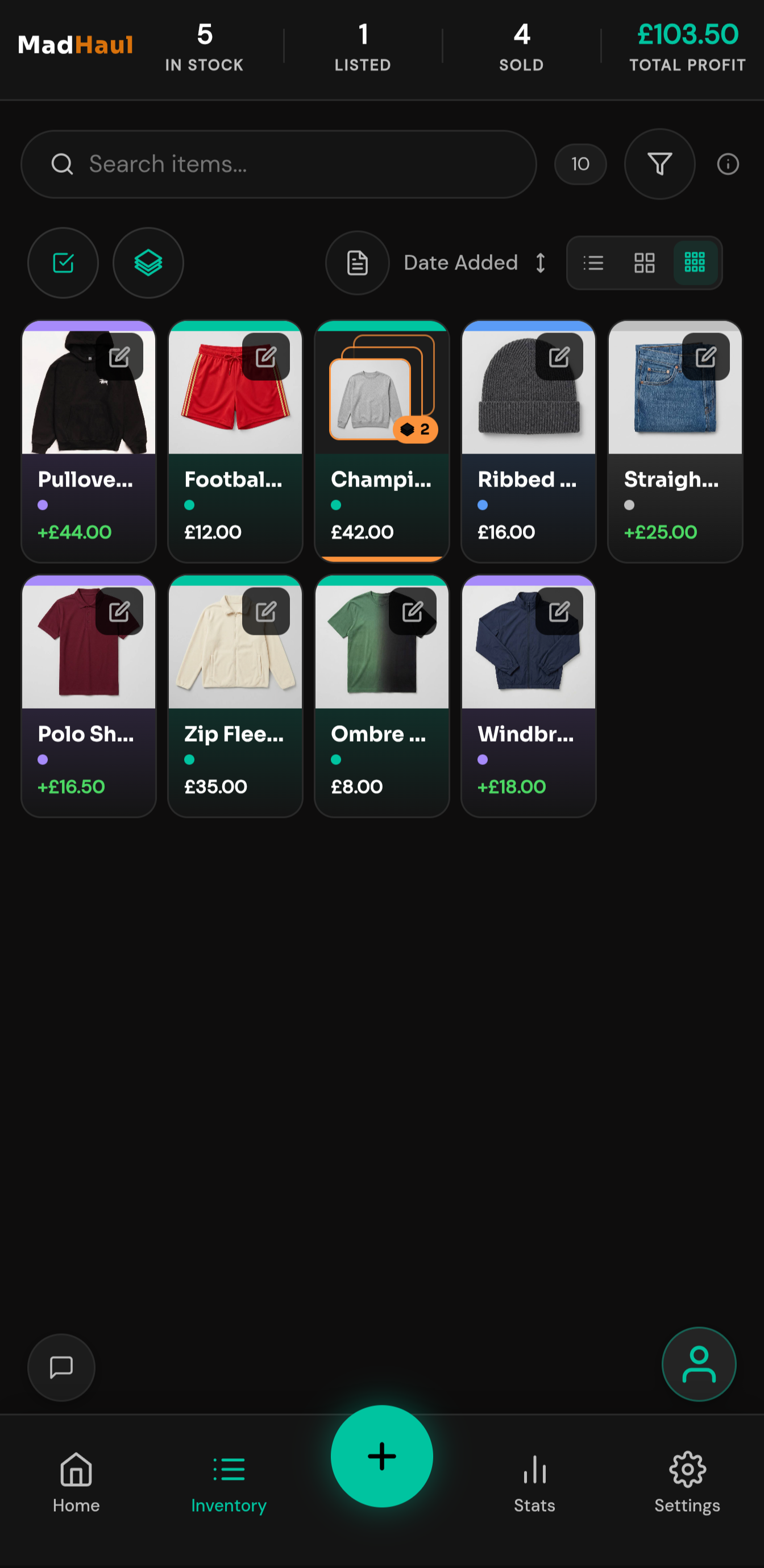
Search it, filter it, sort it, and see the state of everything at a glance.
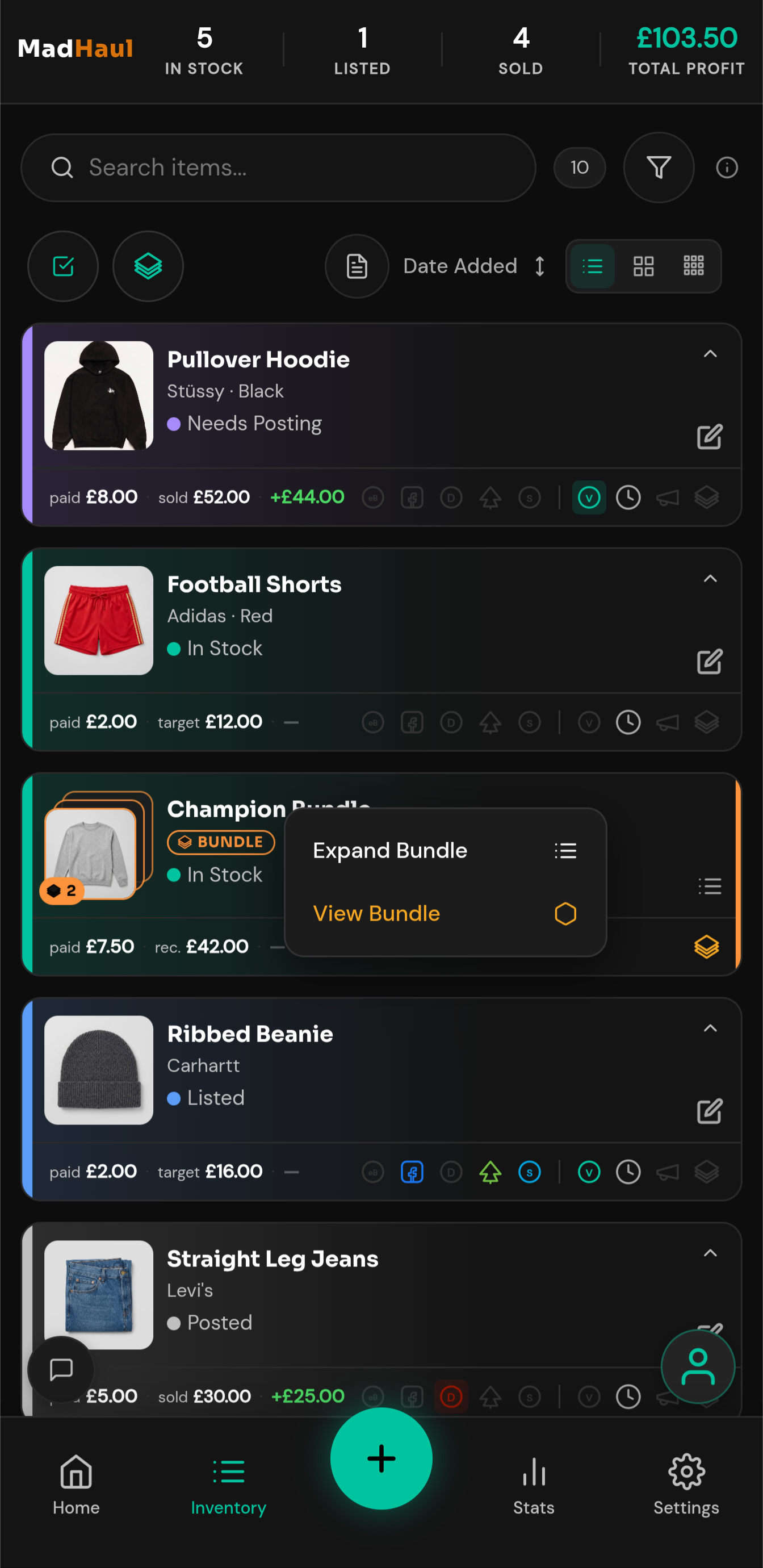
- Three views — a list, a 3-across grid and a 5-across grid, one tap apart, from reading detail to scanning the lot.
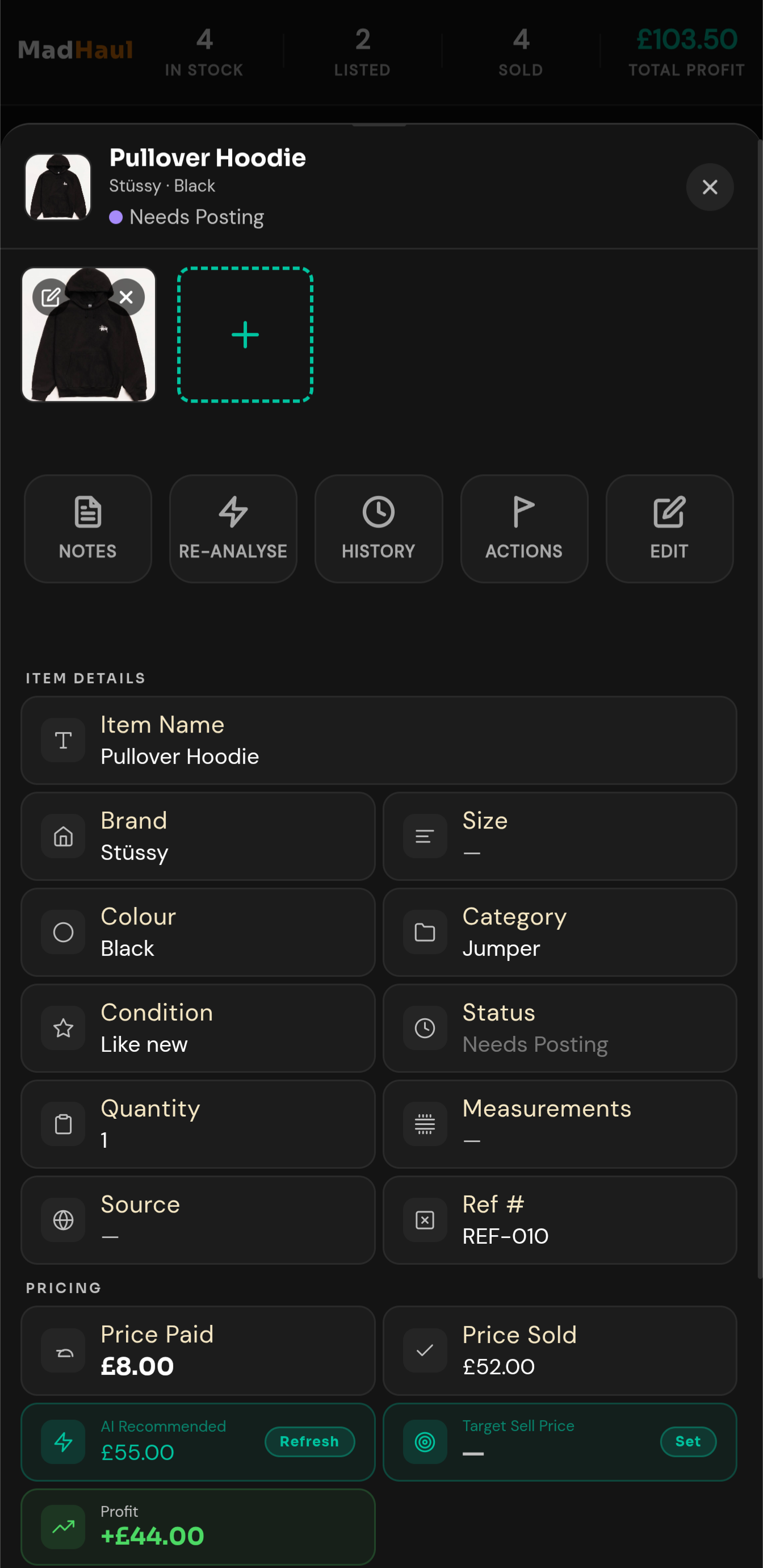
- Colour is the status — teal in stock, blue listed, amber needs relisting, purple sold and awaiting dispatch, green sold.
- Long-press — quick actions on any card.
- Bundles collapse — a five-item bundle sits as one stack instead of flooding the page.
- Platform icons — save the live listing URL per marketplace and the card carries an icon for each.
Bundles
Group things that sell better together.
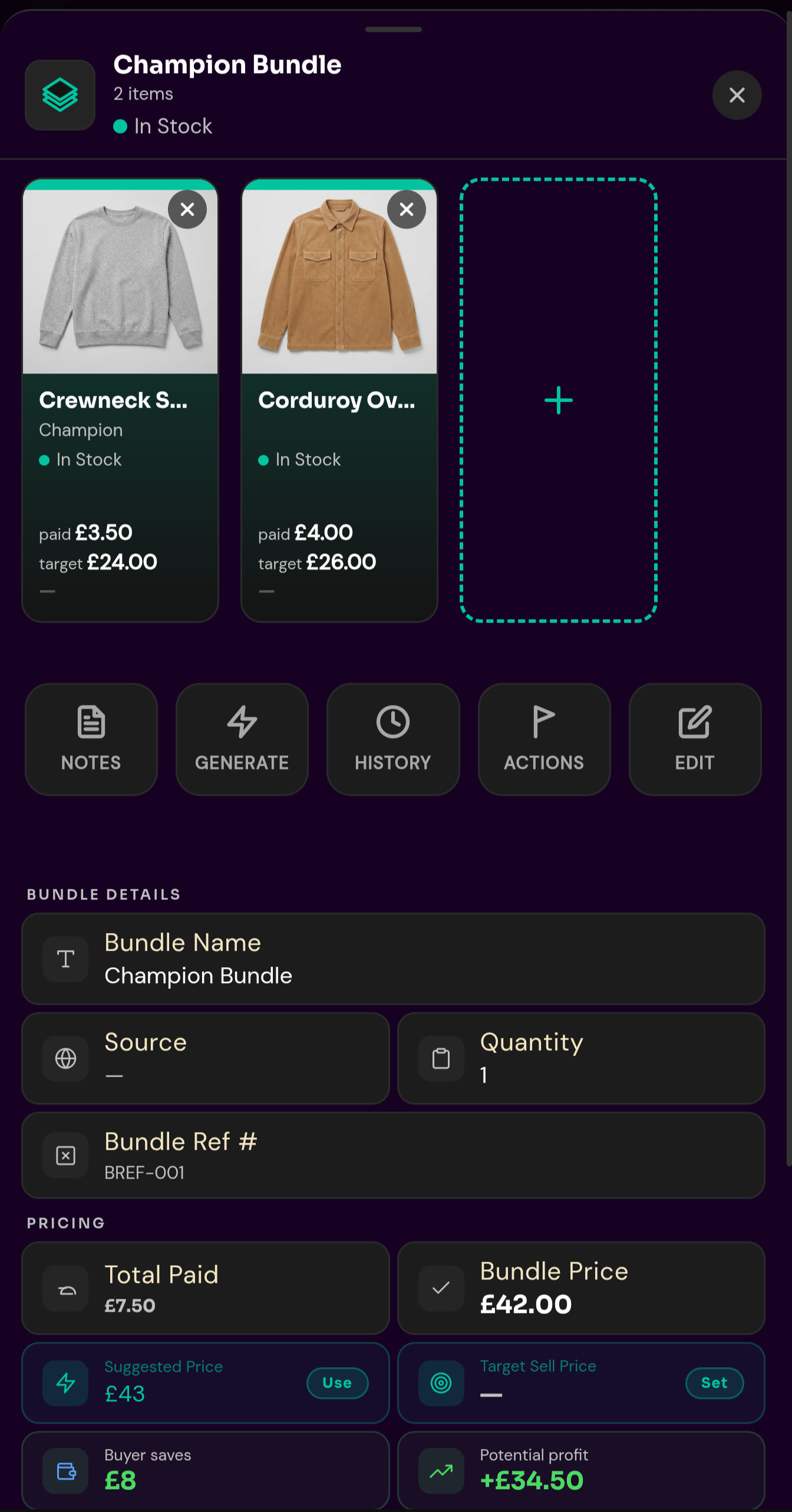
Up to five items to a bundle, at your own asking price or the suggested one.
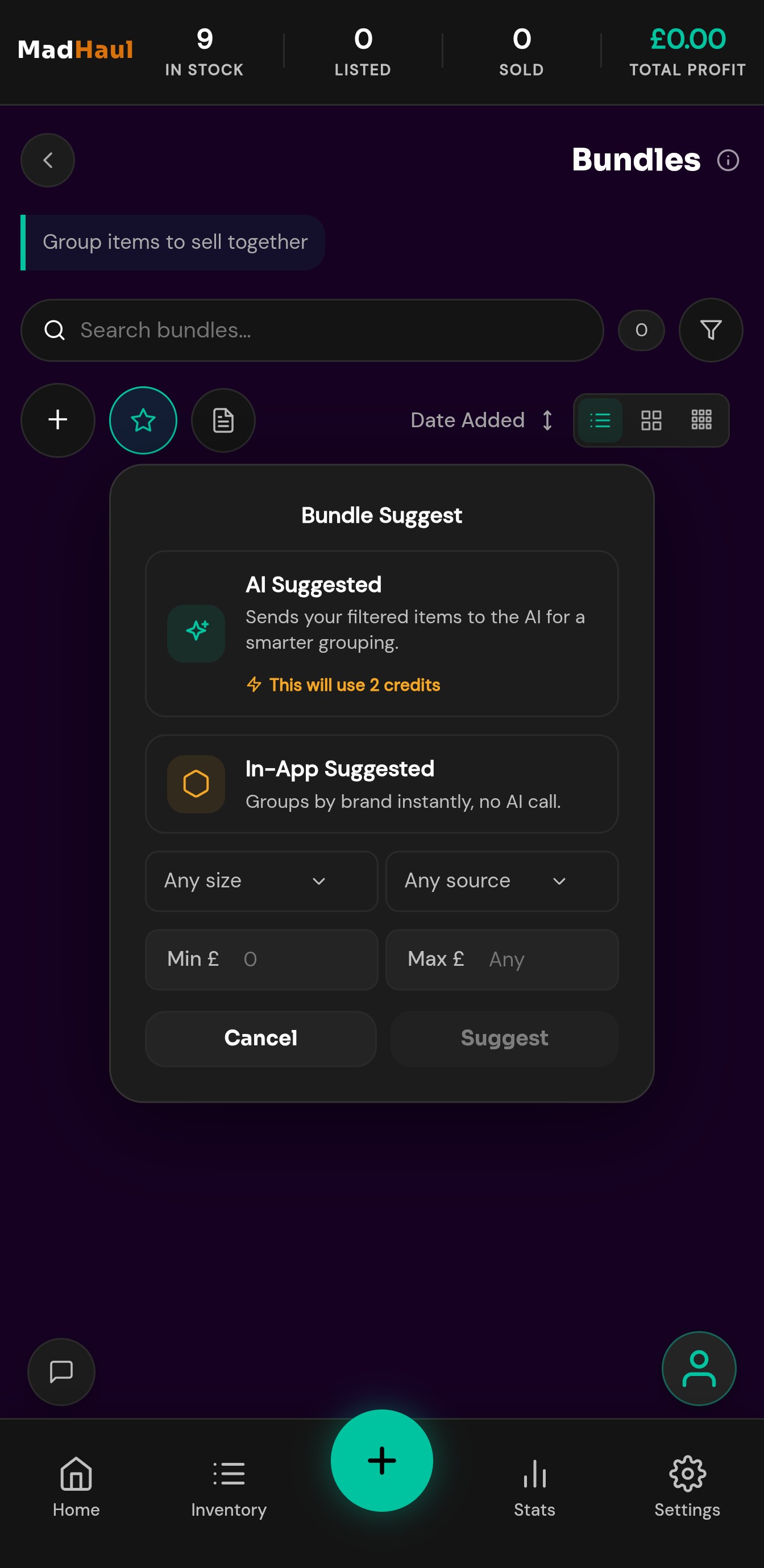
- The suggested price — 15% off the combined total. Plain arithmetic on your phone, not an AI call, and it costs nothing.
- Grouping, free — the in-app suggestion groups by brand, instantly, on your device.
- Grouping, paid — the AI one looks across your inventory for something smarter. The app tells you which is which before you pick.
- Sold moves the lot — mark a bundle sold and its items go with it.
- URLs once — save them and they’re written to every item in the bundle.
Home
Where you land, and what needs doing.
Open the app and the state of things is already on screen.
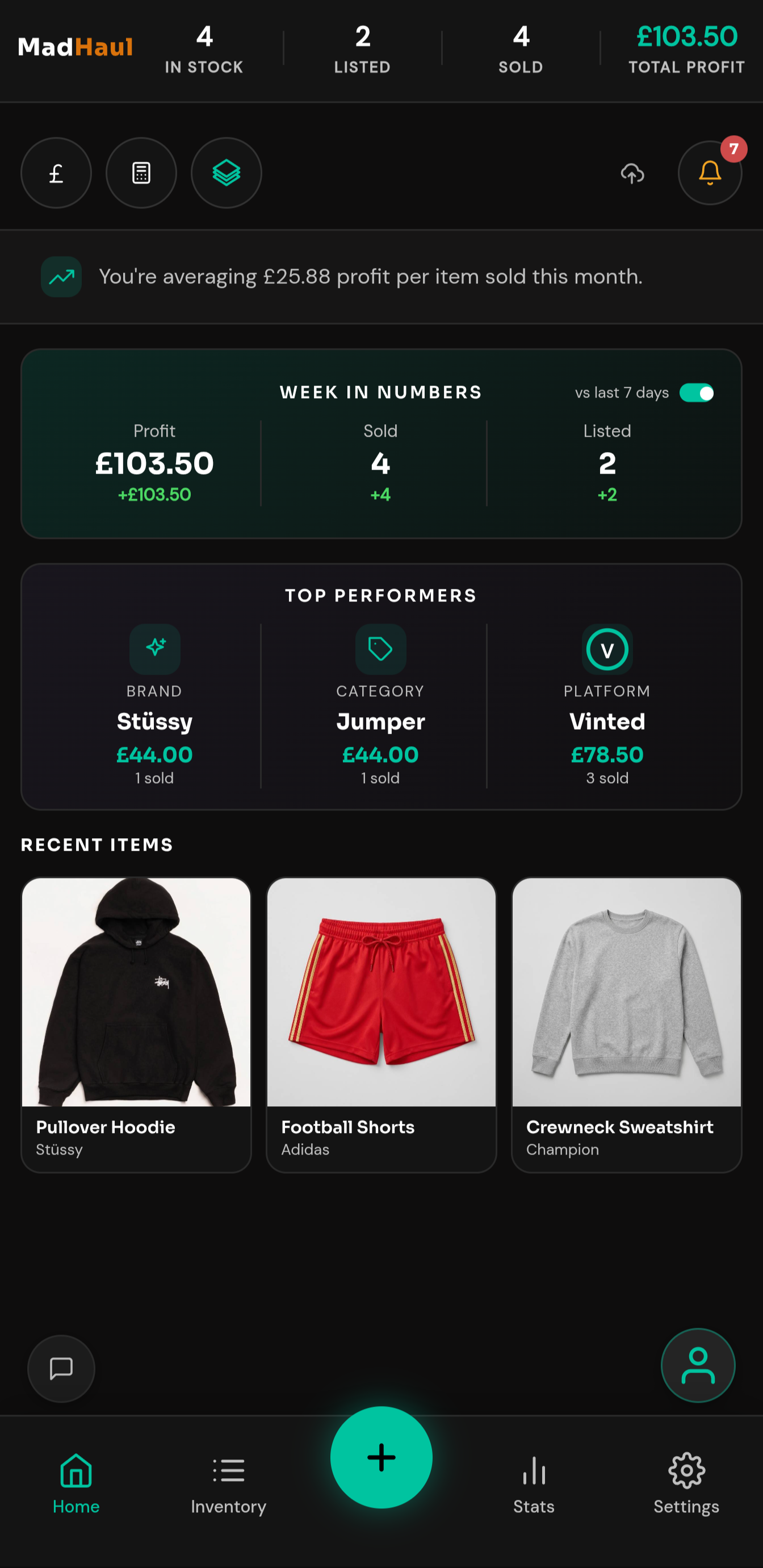
- An insight line — how you’re doing this month, in a sentence.
- The week in numbers — profit, sold and listed, each with its week-on-week change.
- Top performers — your best brand, category and platform.
- The bell — the queue counts, without going looking for them.
- The cloud icon — whether your backup is current.
The numbers
What you actually made.
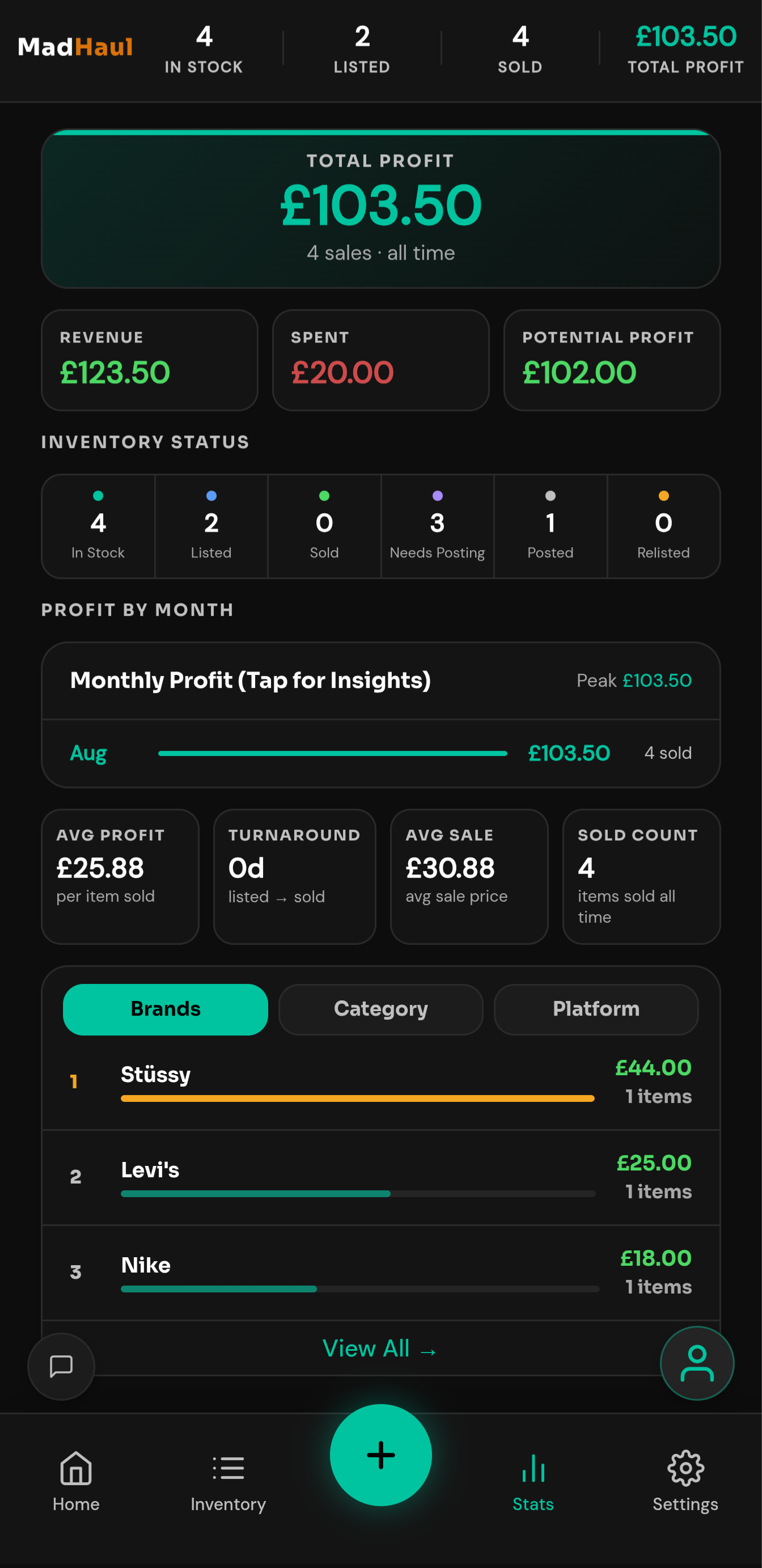
Profit over seven days, thirty days, or the whole time you’ve been doing this.
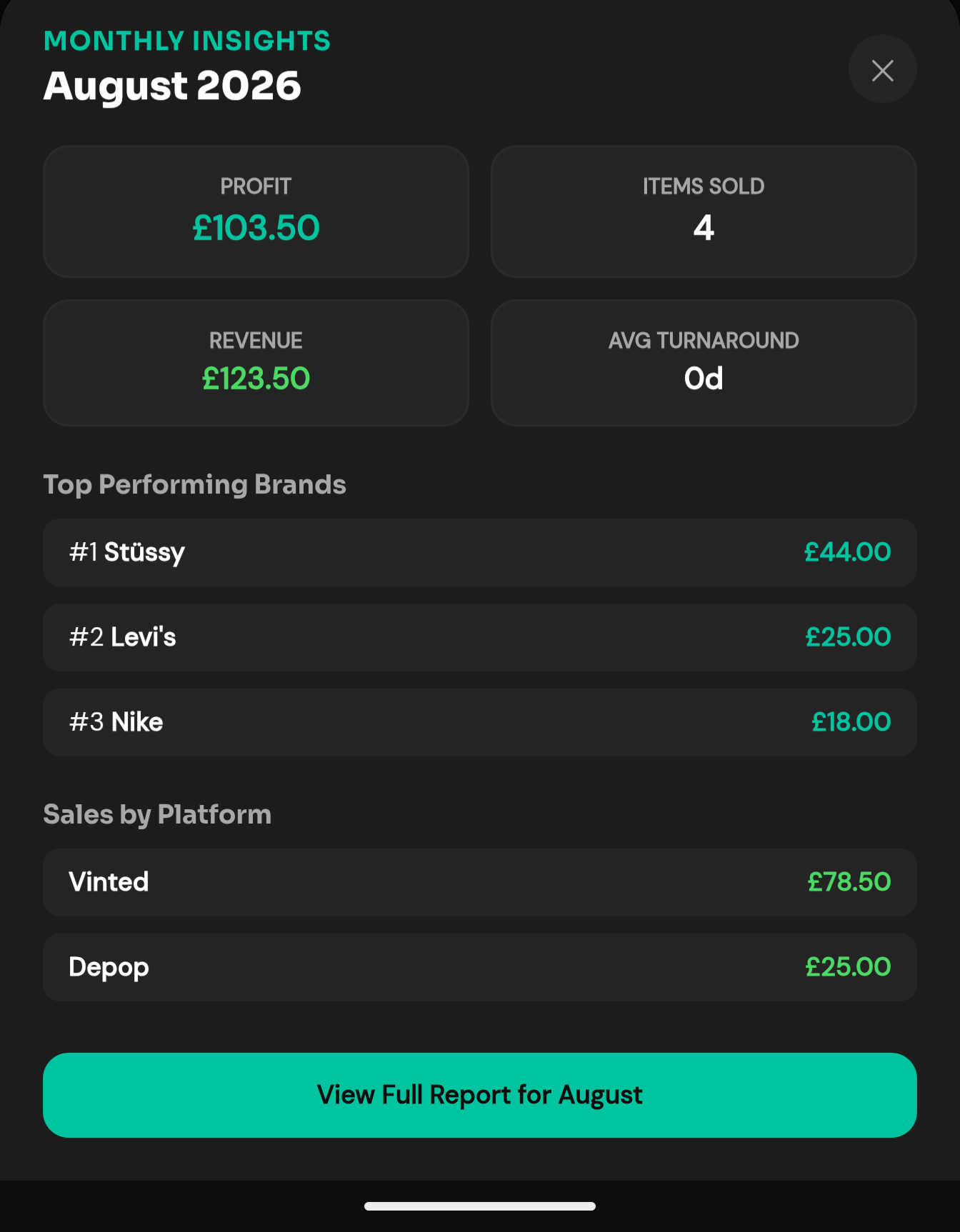
- Broken down — by brand, category and platform, with the months underneath. Tap one for the detail behind it.
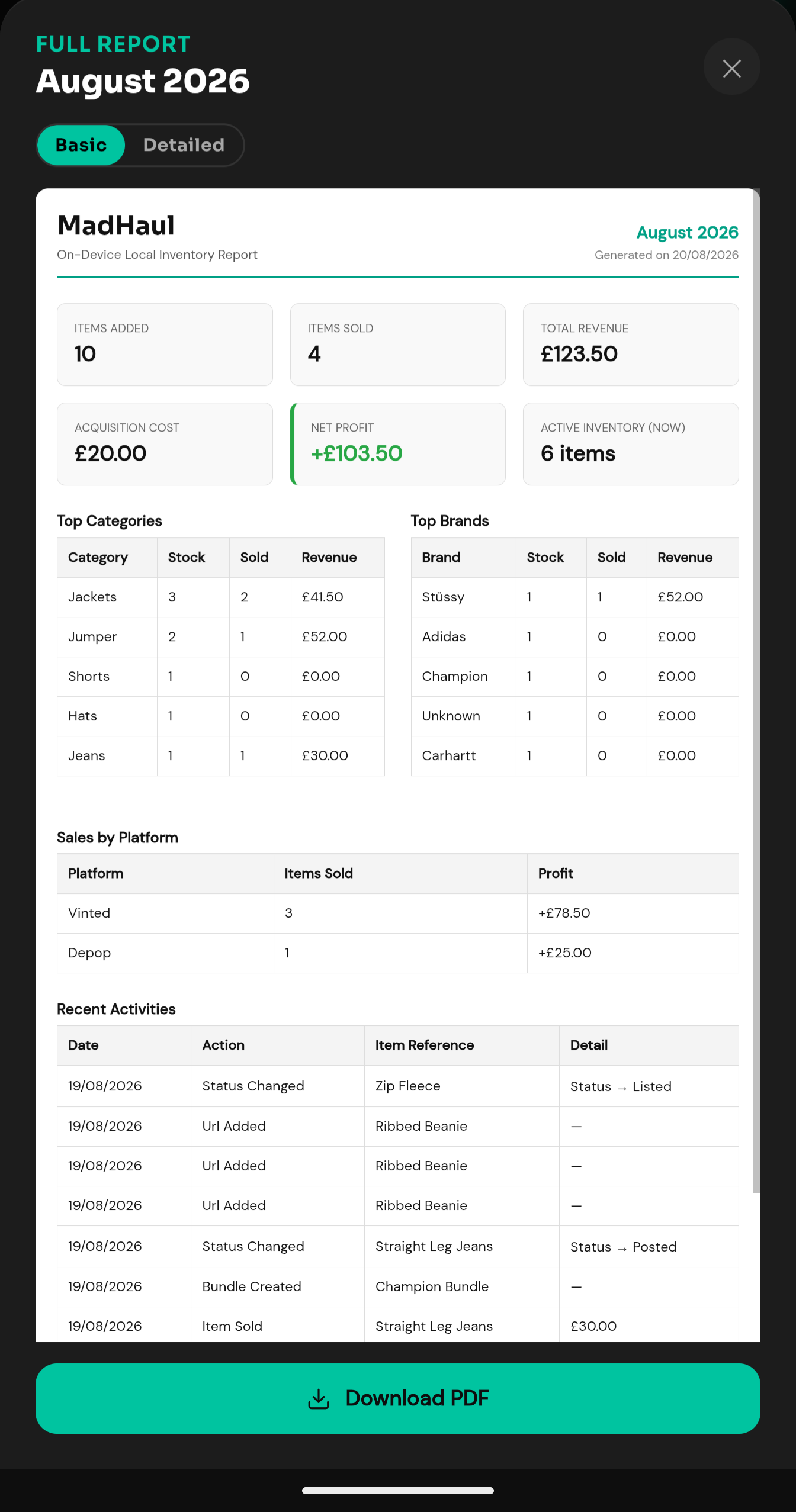
- Monthly report — preview it, download it as a PDF.
- From a permanent sales log — written the moment something sells, not read off whatever status your items are in now.
- So the history holds — change an item later and it won’t quietly rewrite itself.
Not financial advice. Profit, margin and ROI figures are calculations based on the numbers you type in. They are not accounting or tax advice.
Settings and data
Where backup lives.
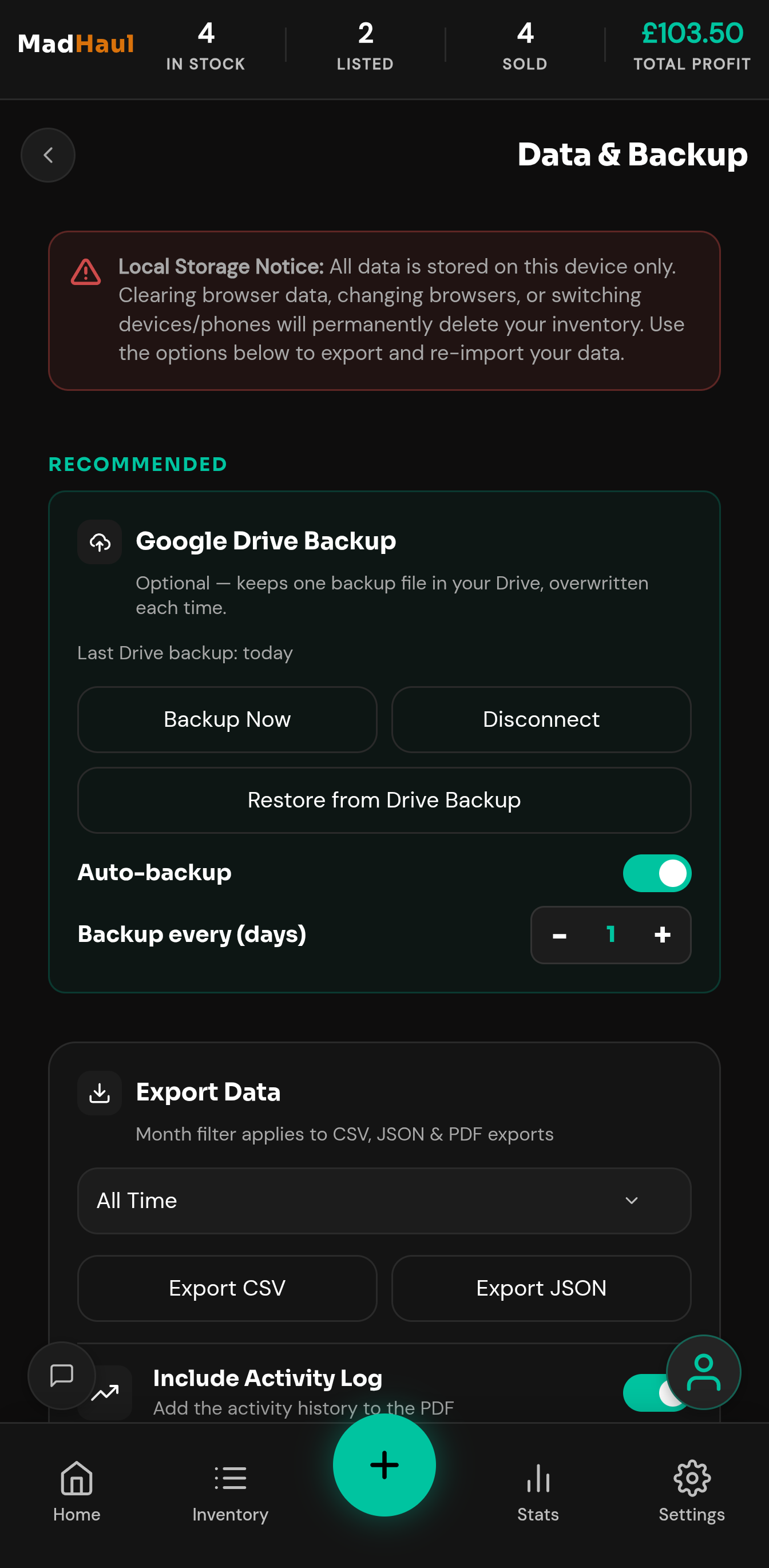
Your inventory sits on your own phone, not on our servers. That’s the good half. The other half is that clearing browser data or switching phones takes it with you only if a backup exists — so backup is part of setup here, not an advanced option.
- Google Drive — one backup file in your own Drive, photos included, reused rather than piling up copies.
- JSON — a full backup you export yourself, whenever you like.
- CSV and PDF — readable rather than restorable, if that’s what you want.
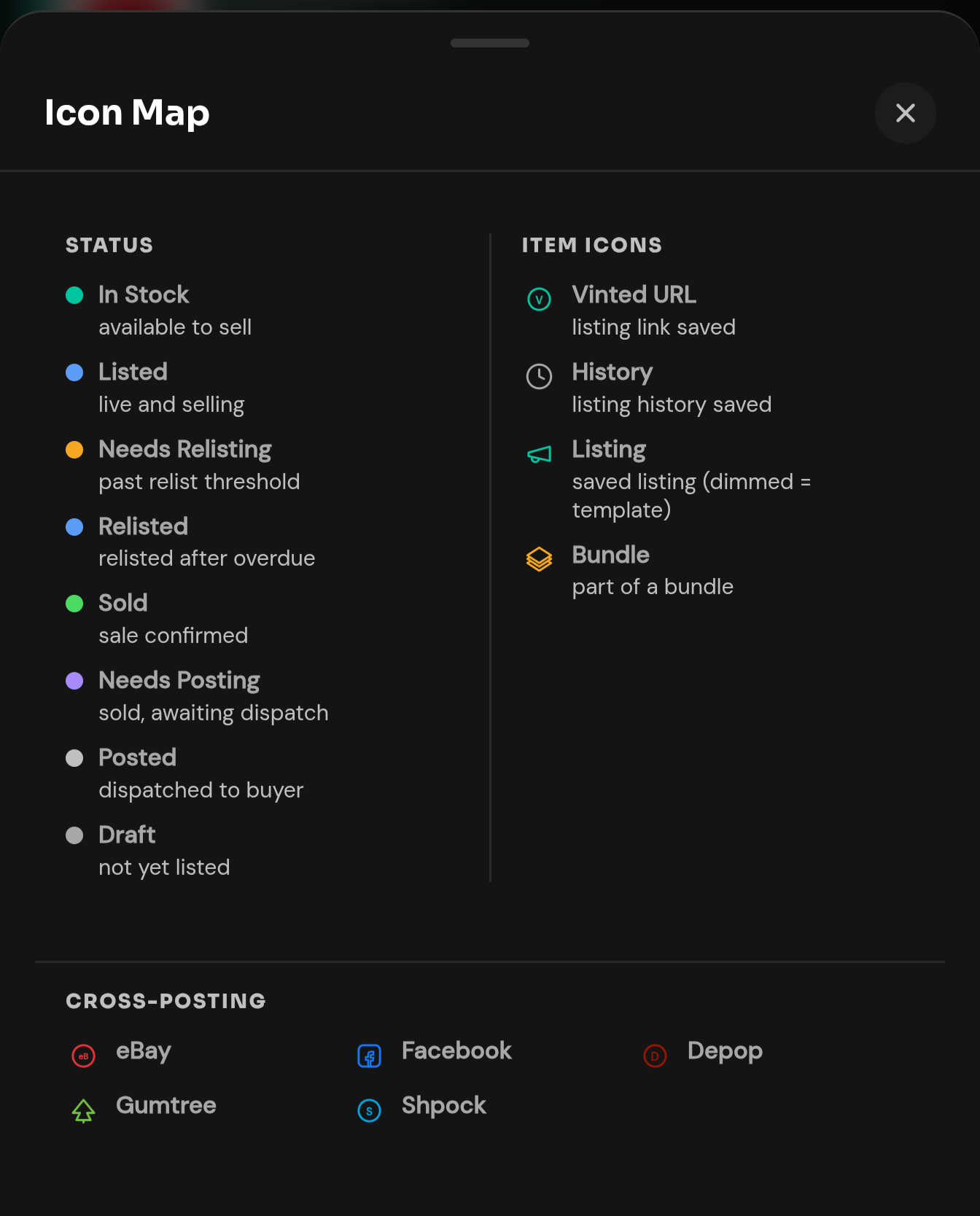
- The icon map — the key to every dot and badge: each status, its colour, what it means.
Settings and history
Set your defaults once. See everything that happened.
Everything new follows your defaults. The activity log keeps the record of what already happened.
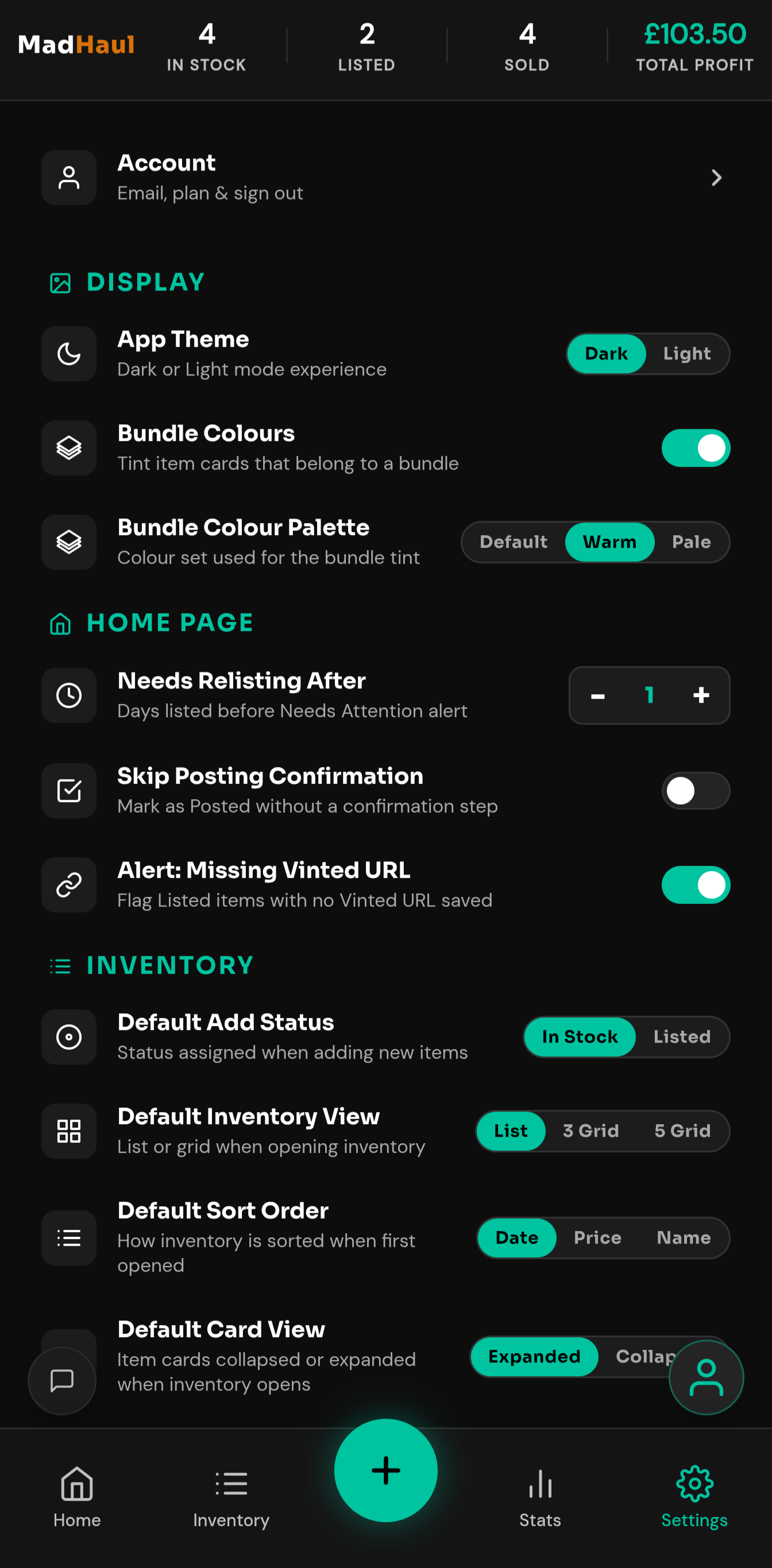
- New items — the status, view, sort order and card layout they start with.
- Listings — the tone, and whether hashtags come with them.
- Price checks — which of the six platforms they price for.
- Relisting — how many days before something counts as needing one.
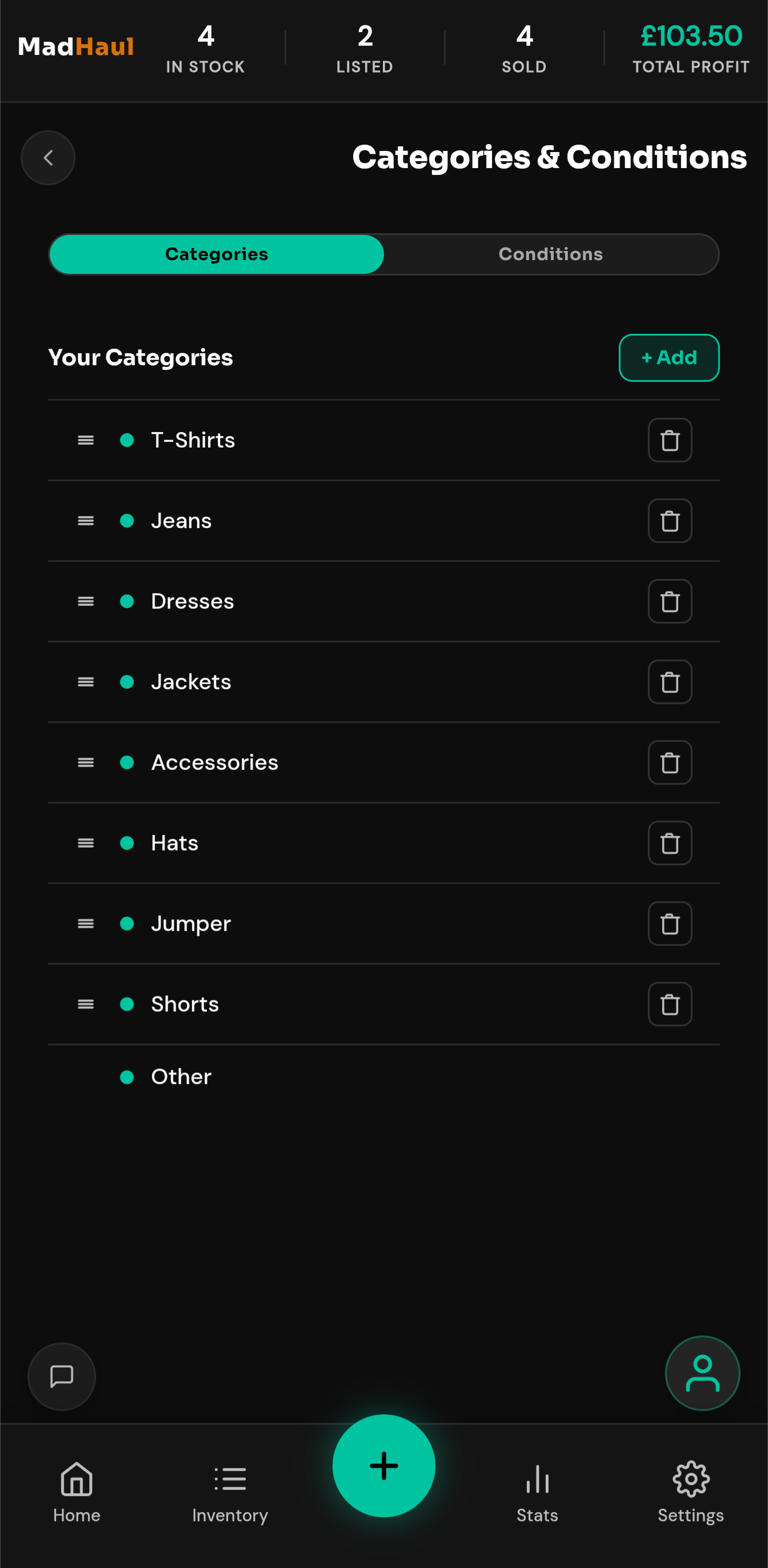
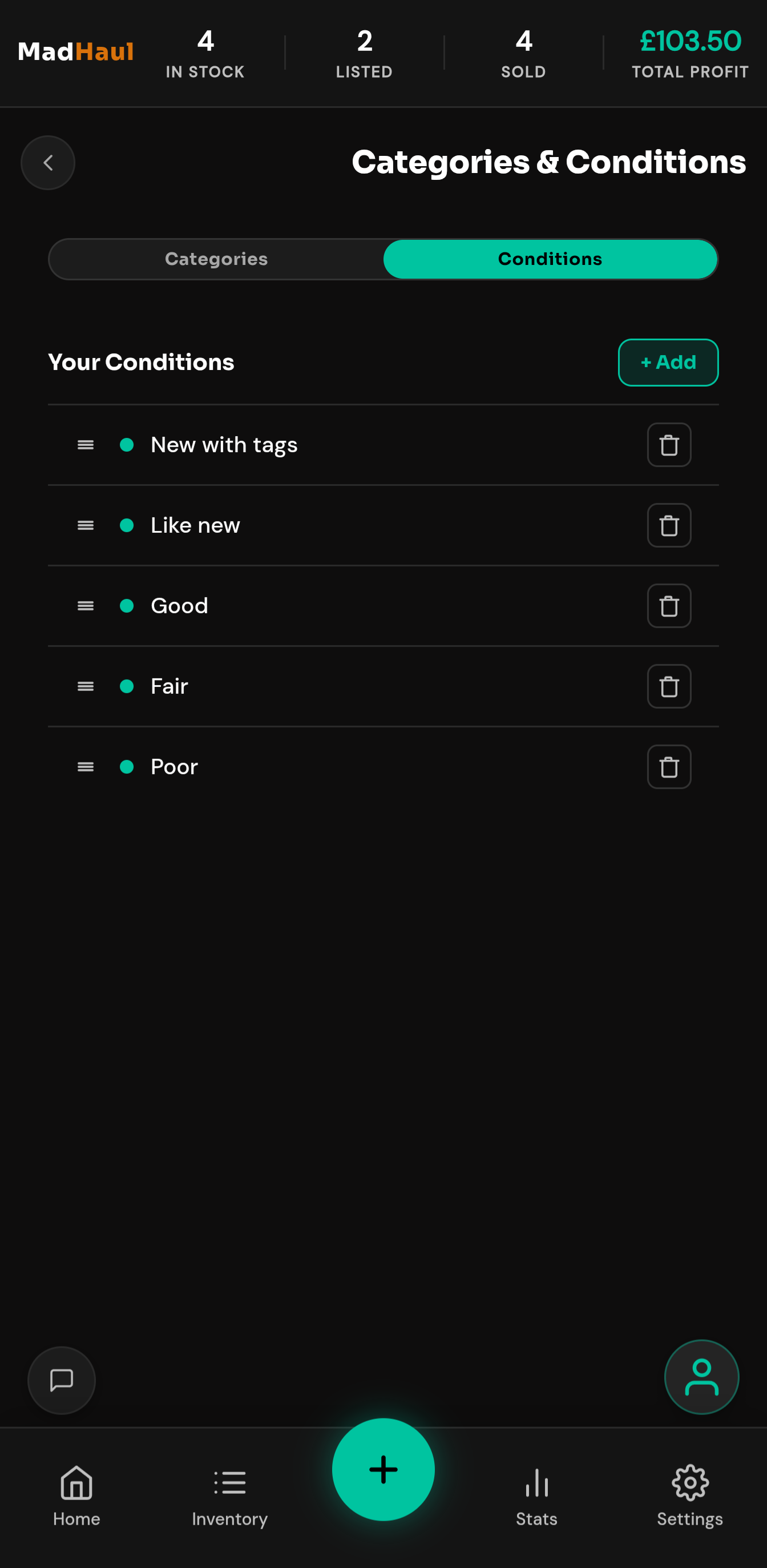
- Categories and conditions — add your own, delete them, drag them into the order you want.
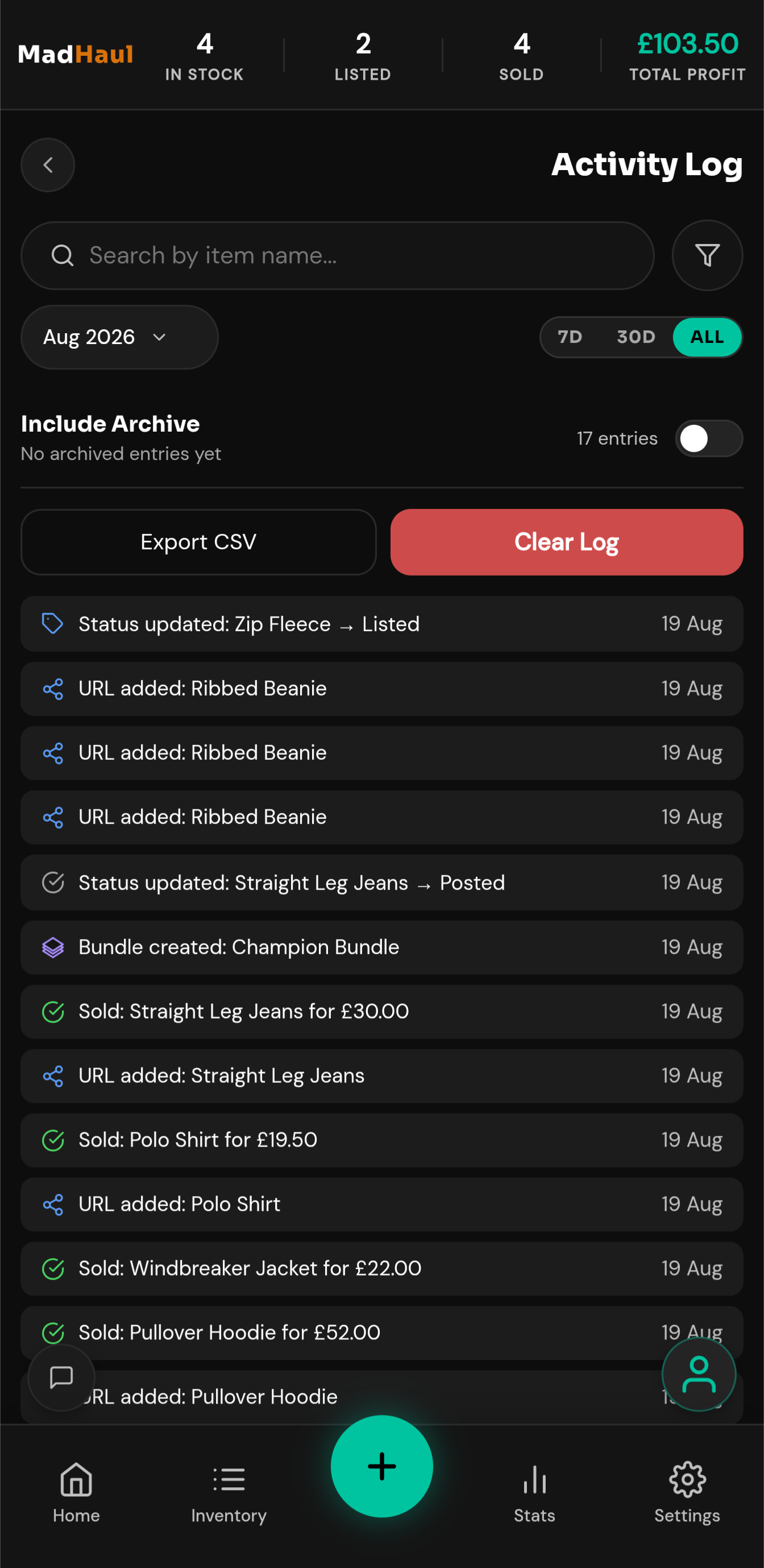
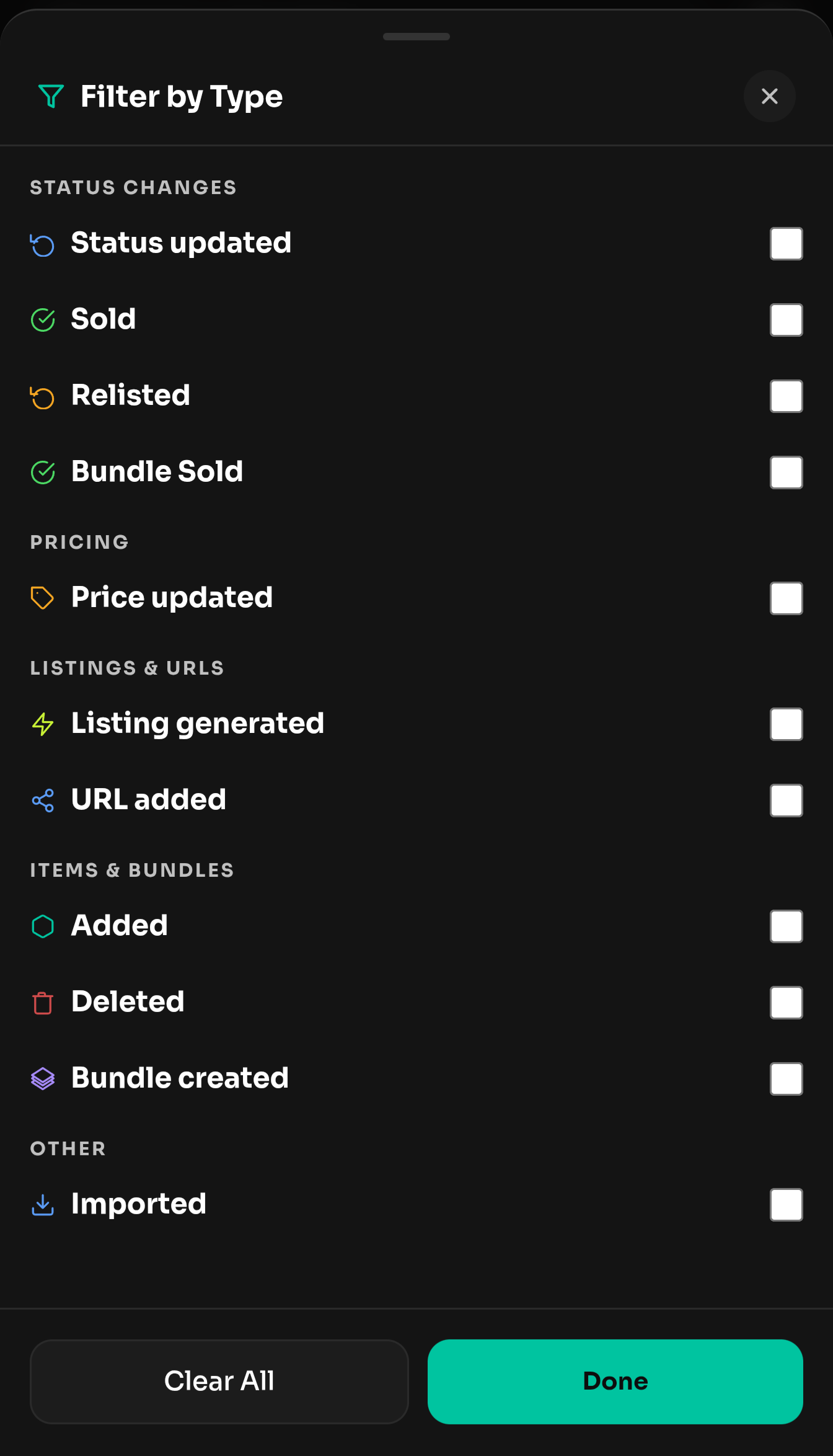
- The log records — status changes, sales, relists, price updates, listings generated, URLs added, items and bundles created or deleted.
- Search and filter — by month or type, then export to CSV; exporting and clearing act on what the filters leave, not the whole log.
- Archiving — old entries archive past a threshold you set, or turn the log off altogether.